


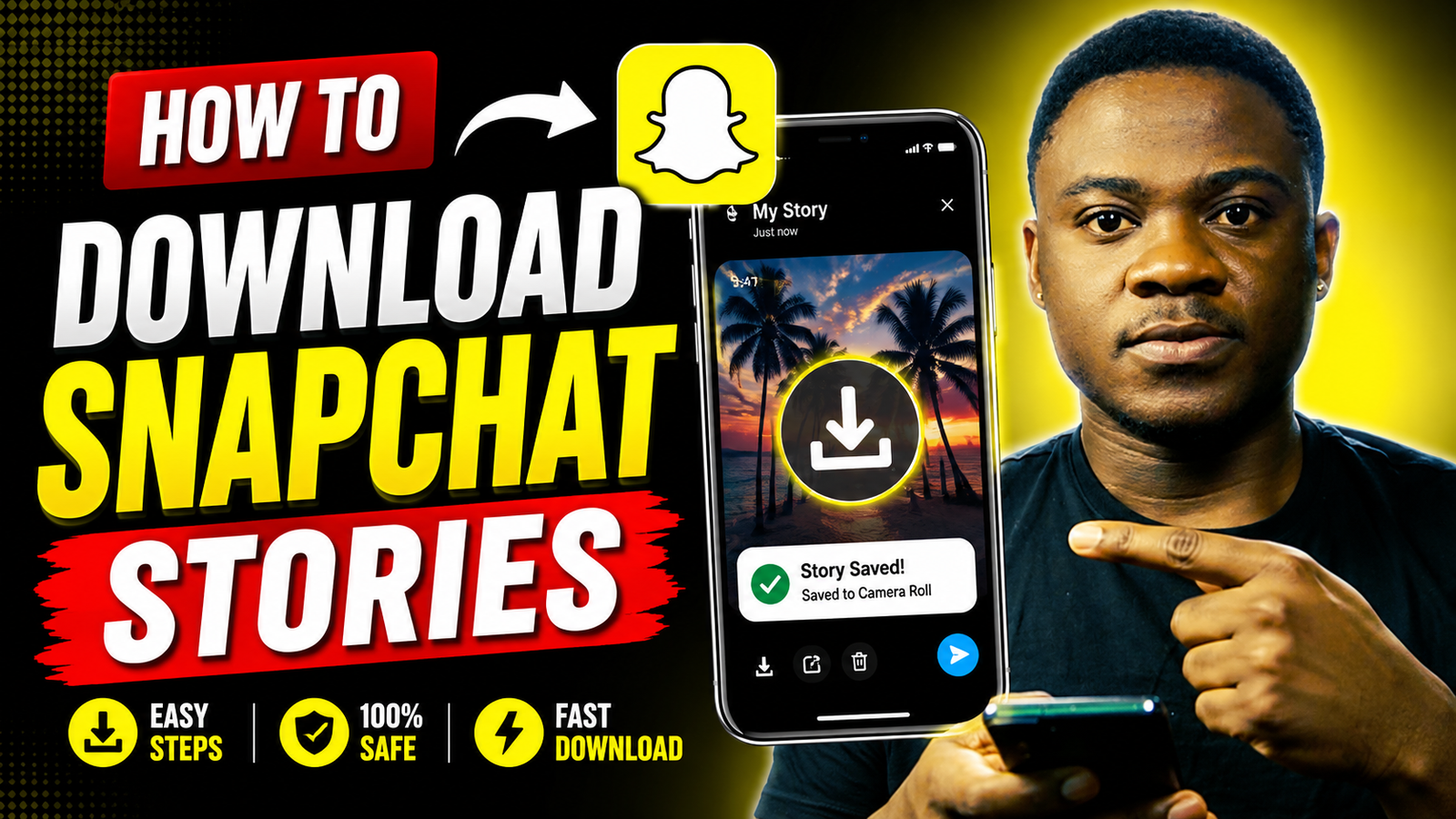
How to Download Snapchat Stories (2026 Step-by-Step Guide)
Snapchat Stories are a popular way to share photos and videos online. Every day, millions of people use Snapchat to post stories that disappear after 24 hours.
There are several reasons why someone might want to save Snapchat Stories, including:
- Saving memories
- Backing up personal content
- Sharing videos later
- Keeping important moments
- Watching stories offline
This beginner-friendly guide will show you how to:
- How to save your own Snapchat Stories
- How to download Snapchat Stories on Android
- How to save Snapchat Stories on iPhone
- Whether Snapchat notifies screen recording
- Safe ways to save stories
- Risks of third-party apps
- Important privacy tips
This tutorial is for educational use and uses the latest Snapchat methods for 2026.
What Are Snapchat Stories?
Snapchat Stories are photos or videos you upload to Snapchat. They stay visible for 24 hours before disappearing automatically.
Users can post:
- Pictures
- Videos
- Text updates
- Music clips
- Filters and effects
Stories are also a popular feature on these platforms:
- Snapchat
- TikTok
On Snapchat, stories can be:
- Public
- Friends-only
- Private
This depends on the user’s privacy settings.
Can You Download Snapchat Stories?
Yes, but there are important differences between:
- Saving your own stories
- Saving someone else’s stories
Snapchat officially allows users to:
- Save their own content
- Export memories
- Download personal stories
However, downloading someone else’s private stories without permission can violate their privacy.
Always respect:
- Privacy
- Copyright
- Snapchat community guidelines
Does Snapchat Notify Screen Recording?
One common question users ask is whether Snapchat sends notifications when someone screen records stories.
The answer depends on the situation.
For Stories:
- Snapchat may not always notify the user
For Chats and disappearing messages:
- Snapchat usually sends a screenshot or screen-recording notification
Since Snapchat policies can change, it’s important to always respect other people’s privacy.
How to Save Your Own Snapchat Stories
The easiest and safest way is to download your own stories straight from Snapchat.
Step 1 — Open Snapchat
Open the Snapchat app on your Android or iPhone.
📸 SCREENSHOT IDEA:
- Snapchat home screen
- Yellow Snapchat icon visible
Step 2 — Tap Your Profile Icon
In the top-left corner:
- Tap your Bitmoji or profile picture
This will open your Snapchat profile.
📸 SCREENSHOT IDEA:
2. Snapchat profile button highlighted
Step 3 — Open My Story
Under “My Stories”:
- Tap your actUnder ‘My Stories’:now view all snaps added to your story.
📸 SCREENSHOT IDEA:
2. My Story section highlighted
Step 4 — Tap the Download Button
Look for the save or download icon at the bottom or top-right corner:
- Tap the save/download icon
Snapchat will save the story to:
- Camera Roll
- Gallery
- Memories
Where your story is saved depends on your settings.
📸 SCREENSHOT IDEA:
- Save icon highlighted
How to Download Snapchat Stories on Android
If you use Android, there are a few ways to save Snapchat Stories.
Method 1 — Use Built-In Screen Recorder
Most Android phones now come with a built-in screen recorder.
Examples:
- Samsung Galaxy phones
- Google Pixel devices
- Xiaomi phones
- OnePlus devices
Step 1 — Open Quick Settings
Swipe down from the top of your screen.
Look for:
- Screen Recorder
📸 SCREENSHOT IDEA:
- Android quick settings panel
- Screen Recorder icon highlighted
Step 2 — Start Recording
Tap:
- Screen Recorder
Allow permissions if requested.
📸 SCREENSHOT IDEA:
2. Start recording popup
Step 3 — Open Snapchat Story
Next, open Snapchat and play the story you want to save.
📸 SCREENSHOT IDEA:
- Snapchat story while recording
Step 4 — Stop Recording
After the story finishes:
- Stop the recording
The video will be saved automatically to your gallery.
📸 SCREENSHOT IDEA:
2. Stop recording button
How to Download Snapchat Stories on iPhone
If you have an iPhone, you can also use the built-in screen recording feature.
Step 1 — Enable Screen Recording
Open:
Settings → Control Center
Settings → Control Center
Add:
1. Screen Recording
📸 SCREENSHOT IDEA:
2. iPhone Control Center settings
Step 2 — Open Control Center
Swipe down from the top-right corner.
📸 SCREENSHOT IDEA:
- iPhone Control Center opened
Step 3 — Start Recording
Tap the Screen Recording button.
Wait for the countdown.
📸 SCREENSHOT IDEA:
- iPhone recording countdown
Step 4 — Open Snapchat Story
Open Snapchat and play the story.
📸 SCREENSHOT IDEA:
- Snapchat story on iPhone
IMAGE NAME:
iphone-step-4-play-story.jpg
iphone-step-4-play-story.jpg
Step 5 — Stop Recording
Tap the red recording indicator.
Your recording will be saved to the Photos app.
📸 SCREENSHOT IDEA:
- Stop recording notification
IMAGE NAME:
iphone-step-5-stop-recording.jpg
iphone-step-5-stop-recording.jpg
Using Snapchat Memories
SnapchaSnapchat Memories is the safest way to save your personal snaps and stories.ies allow users to:
- Save stories privately
- Repost content later
- Backup old snaps
- Export photos and videos
How to Save Stories Automatically to Memories
Step 1
Open Snapchat settings.
Step 2
Scroll to:
- Memories
Step 3
Enable:
- Auto-save stories
This enThis will make sure your future stories are saved automatically.REENSHOT IDEA:
- Snapchat Memories settings
IMAGE NAME:
memories-settings.jpg
memories-settings.jpg
Risks of Third-Party Snapchat Downloader Apps
There are many websites and apps that claim to download Snapchat stories automatically.
Be careful with these options.
Some third-party apps may:
- Steal account information
- Violate Snapchat policies
- Install malware
- Cause account bans
- Compromise privacy
For safety reasons, avoid:
- Untrusted APK files
- Suspicious websites
- Fake Snapchat tools
The safest ways to save stories are:
- Snapchat Memories
- Built-in save features
- Screen recording
Is Downloading Snapchat Stories Legal?
You are always allowed to download your own stories.
However, downloading someone else’s private content without permission can cause:
- Privacy concerns
- Copyright issues
- Trust problems
Always ask for permission before sharing or reposting someone else’s content.
Why People Save Snapchat Stories
People save stories for many reasons, such as:
Memories
They want to keep important moments.
Content Creation
Creators often repurpose stories for:
- TikTok
- Instagram Reels
- YouTube Shorts
Offline Viewing
Some people save stories so they can watch them later without internet access.
Backup Purposes
Stories will disappear after 24 hours unless you save them.
Common Problems and Fixes
Snapchat Story Not Saving
Try:
- Restarting Snapchat
- Updating the app
- Checking storage space
- Allowing storage permissions
Screen Recording Has No Audio
Some phones disable internal audio recording.
Check:
- Screen recorder audio settings
- App permissions
Snapchat Crashes During Recording
Try:
- Closing background apps
- Restarting the phone
- Updating Snapchat
Low Video Quality
For better quality:
- Use HD screen recording settings
- Increase screen brightness
- Record on stable internet connection
Best Phones for Screen Recording Snapchat Stories
Some phones are better at screen recording than others.
Good options include:
- Samsung Galaxy phones
- iPhones
- Google Pixel devices
- Xiaomi phones
Modern flagship phones usually give you smoother screen recording.
This guide should help you save Snapchat Stories safely in 2026.
For more Snapchat tutorials, tech guides, and social media tips, visit Elec tv.
