


How to Create a WhatsApp Username (Step-by-Step Guide)
One of the most requested features in WhatsApp’s entire history has finally arrived. As of June 29, 2026, WhatsApp has officially begun rolling out usernames — a brand-new way to connect with people without ever sharing your personal phone number.
For years, WhatsApp’s identity system has been built entirely around your mobile number. Every time you wanted someone to reach you on the app, you had to hand over your personal digits — something many users have been uncomfortable with, especially when connecting with new colleagues, customers, online communities, or people they have just met. That changes right now.
With WhatsApp usernames, you can choose a unique handle, share it with anyone, and let them message you directly — while keeping your phone number completely private. The feature works on both Android and iPhone, and reserving your username takes less than two minutes.
In this complete guide, we will walk you through exactly how to create your WhatsApp username, explain all the rules and restrictions, cover the new optional username key privacy feature, show you how to claim your existing Instagram or Facebook handle on WhatsApp, and answer every common question about the rollout.
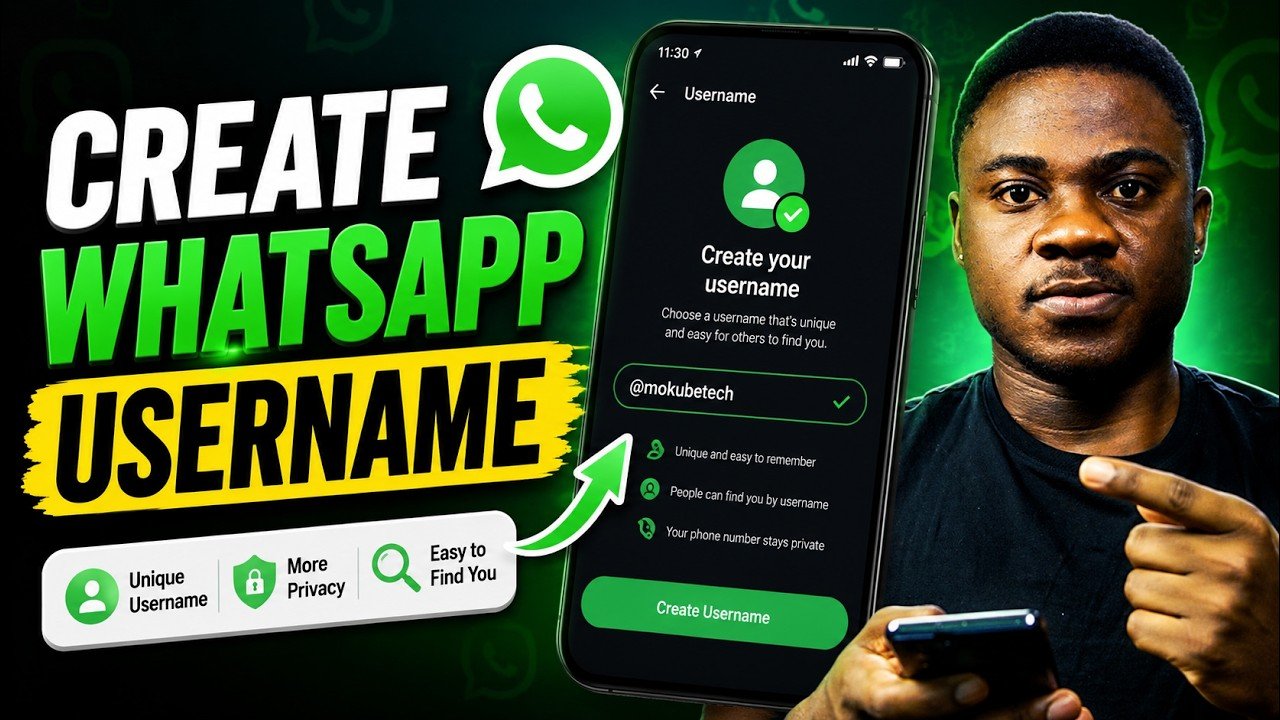

What Is a WhatsApp Username and Why Does It Matter?
A WhatsApp username is a unique, optional identifier that you can set on your account — similar to how usernames work on Telegram, Instagram, or X (formerly Twitter). Once set, it gives you a way to be contactable on WhatsApp without revealing your personal phone number.
Here is why this matters for everyday users:
- Privacy: Your phone number stays hidden from people you message for the first time when using your username
- Professional use: Share your WhatsApp handle with clients, customers, or online followers without exposing your personal number
- Safety: Avoid your number being saved, shared, or misused by people you have just met
- Convenience: One clean, memorable handle instead of a long international phone number
WhatsApp is clear that usernames are optional — you do not have to create one, and the existing phone-number-based system continues to work exactly as before. However, given that billions of people use WhatsApp every month, desirable usernames are going to be claimed fast. If you want a clean, short, recognizable handle, now is the time to act.
What You Need to Know Before Creating Your Username
No Public Directory
Unlike many platforms, WhatsApp will not have a public username directory or search function. This is a deliberate privacy choice. For someone to contact you using your username, they will need to know your exact handle — no browsing, no discovery, no suggestions. This keeps the system private and significantly reduces spam risk.
Usernames Are Optional, Not a Replacement for Phone Numbers
WhatsApp still requires a phone number to sign up and log in. Usernames are an additional layer on top of the existing system — not a substitute for your number. People who already have your number saved can still message you that way. The difference is that anyone you reach out to using your username will only see that handle, not your phone number.
Rolling Out Gradually
The username feature is being rolled out in phases starting the week of June 29, 2026. Not every WhatsApp account will have immediate access. If you do not yet see the username option in your settings, your account simply has not received the update yet — it is coming. WhatsApp will notify you within the app when usernames become available in your region.
Username Key (Optional Security Layer)
WhatsApp is also introducing an optional username key — a kind of password tied to your username. If you enable this, anyone who wants to message you via your username will need to know both your handle and your username key. This gives you an additional layer of control over who can reach you.
WhatsApp Username Rules and Requirements
Before you start typing, make sure your desired username meets WhatsApp’s formatting requirements:
- Must include at least one letter, and that letter must be the first character — usernames cannot start with a number, period, or underscore
- Can contain letters, numbers, underscores (_), and periods (.)
- Cannot exceed 35 characters
- Cannot start with “www.” or end with a domain extension (such as “.com”, “.net”, “.org”) — this prevents impersonation of websites or brands
- Cannot contain two consecutive periods (e.g. “john..doe” is not valid)
- Must be unique across all of WhatsApp — no two accounts can share the same username
Examples of valid usernames:
- electv
- mokubetech
Examples of invalid usernames:
- www.mysite (starts with “www.”)
- support.com (ends with domain extension)
- 12345 (no letters)
- .starthere (starts with a period)
- john..doe (consecutive periods)
How to Create Your WhatsApp Username on Android (Step-by-Step)
Step 1: Make sure your WhatsApp app is updated to the latest version from the Google Play Store. The username feature is only available on the most recent app version.
Step 2: Open WhatsApp on your Android device.
Step 3: Tap the three vertical dots (⋮) in the top-right corner of the screen.
Step 4: Tap Settings.
Step 5: Tap Account.
Step 6: Under the Your Account section, tap Username.
Step 7: Tap Create Username.
Step 8: Type your desired username in the text field. WhatsApp will check availability in real time — a green tick means it is available, a red or warning indicator means it is already taken.
Step 9: If you do not know what to choose, tap the username generator option to receive suggestions based on your input.
Step 10: Once you are happy with an available username, tap Confirm or Save to reserve it.
Your WhatsApp username is now set and ready to share.
How to Create Your WhatsApp Username on iPhone (Step-by-Step)
Step 1: Update WhatsApp to the latest version from the App Store.
Step 2: Open WhatsApp on your iPhone.
Step 3: Tap the Settings tab at the bottom right corner of the screen.
Step 4: Tap Account.
Step 5: Tap Username under the Your Account section.
Step 6: Tap Create Username.
Step 7: Enter your desired username. The app will check availability as you type — look for a green checkmark to confirm it is available.
Step 8: Use the username generator if you need help choosing one.
Step 9: Tap Confirm or Done to save your username.
That is it — your username is now live on your WhatsApp account.
How to Claim Your Existing Instagram or Facebook Username on WhatsApp
If you are a creator, small business, or brand that already has a presence on Instagram or Facebook, WhatsApp has reserved a special option to help you claim your existing social media username on WhatsApp — so your handle stays consistent across Meta’s platforms.
Here is how to do it:
Step 1: Before attempting to claim your handle, you need to link your WhatsApp account to your Meta Accounts Center. This is the same hub that connects your Instagram and Facebook accounts.
Step 2: To add WhatsApp to Accounts Center, go to WhatsApp → Settings → Account → Meta Accounts Center and follow the prompts to connect your accounts.
Step 3: Once your accounts are linked, return to Settings → Account → Username.
Step 4: When you reach the username creation screen, you will see an option to import your Instagram username or import your Facebook username. Tap the one you want.
Step 5: WhatsApp will verify the linked account and make that username available for you to reserve on WhatsApp.
Step 6: Confirm the selection to claim it.
Important: The same username can only exist on one account across WhatsApp. If your Instagram username is the same as a Facebook username held by a different person, there could be competition for the same WhatsApp handle. If you want your existing social handle on WhatsApp, reserve it as soon as possible — the sooner you act, the better your chances of securing it.
How to Change Your WhatsApp Username After Setting It
Changed your mind about your username? You can update it at any time by returning to the same settings path:
WhatsApp → Settings → Account → Username
From here, tap your current username and edit or replace it with a new one, following the same availability check and formatting rules as the initial setup.
Note: WhatsApp has not currently announced a strict limit on how often you can change your username, but be aware that releasing a username makes it immediately available for others to claim — so think carefully before switching away from a handle you like.
How to Set Up the Optional Username Key
For maximum privacy, consider enabling the username key feature after setting your username. This adds an extra password-like layer that anyone trying to contact you via username will need to provide alongside your handle.
To enable it:
Step 1: Go to WhatsApp → Settings → Account → Username.
Step 2: Look for the Username Key option below your set username.
Step 3: Toggle it on and set your preferred key.
Share this key only with people you actually want to be able to reach you via username — making it an effective gatekeeping tool for managing new contacts.
What If I Do Not See the Username Option in My Settings?
If you follow the steps above and do not find a Username option under Settings → Account, your account has not yet received the update. The rollout is happening in phases globally starting June 29, 2026, and WhatsApp has confirmed that all users will receive access in the coming weeks.
Here is what you can do in the meantime:
- Update your app to the absolute latest version — sometimes the feature appears after an update even before a formal notification
- Check back daily — the rollout is happening quickly and new accounts are being enabled every day
- Watch for an in-app notification — WhatsApp has promised to notify users directly within the app when usernames become available in their region
Benefits of Creating a WhatsApp Username Right Now
Beyond the obvious privacy advantages, there are practical reasons to create your username immediately rather than waiting:
1. Claim your preferred handle before someone else does. With billions of WhatsApp users, popular names, brand handles, and short usernames will be claimed extremely quickly. If you want something clean and memorable, acting now dramatically improves your chances.
2. Protect your existing brand identity. If you are a business, creator, or public figure, your audience already knows you by a specific name. Securing that name on WhatsApp now prevents confusion or impersonation later.
3. Start sharing a phone-number-free contact method immediately. Once the full username messaging system is live, you will be ready to give people your WhatsApp handle instead of your personal number — a meaningful privacy upgrade for your day-to-day communication.
Frequently Asked Questions
Is creating a WhatsApp username free?
Yes, completely free. There is no cost to create or reserve a WhatsApp username.
Do I have to create a username on WhatsApp?
No. Usernames are entirely optional. If you prefer to continue using WhatsApp the same way you always have — with your phone number as your identifier — nothing changes for you.
Will people with my phone number still be able to message me?
Yes. Anyone who already has your phone number saved can still message you through WhatsApp as normal. The username system is an additional contact method, not a replacement for your number.
Can people search for me by username?
No. WhatsApp has deliberately chosen not to include a public username directory or search feature. Someone must know your exact username to contact you through it — this is a privacy-first design decision.
What happens to my phone number when someone messages me via username?
When someone messages you for the first time using your username, they will see your username rather than your phone number — keeping your personal number private.
Can I use the same username I have on Instagram or Facebook?
Yes, if you link your WhatsApp account to Meta’s Accounts Center, you can claim your existing Instagram or Facebook username on WhatsApp. However, the same username can only belong to one account across WhatsApp, so act quickly if your handle is also held by someone on another Meta platform.
What is the maximum length for a WhatsApp username?
WhatsApp usernames cannot exceed 35 characters.
Can my username start with a number?
No. Your username must begin with a letter. Numbers, underscores, and periods are allowed within the username but not as the first character.
Can I delete my WhatsApp username after creating it?
Yes. You can remove your username at any time through the same Account → Username settings menu. Removing it releases the handle, making it available for others to claim.
What is the username key and do I need it?
The username key is an optional extra password that people will need alongside your username to message you. It is not required — it is simply an additional privacy tool for users who want extra control over who can contact them.
