


How to Change Your Telegram Channel Username
Whether you are rebranding your Telegram channel, fixing a typo from when you first set it up, or simply want a cleaner, more memorable handle, changing your channel’s username is one of the most common administrative tasks Telegram channel owners deal with. The good news is that it is a quick, fully supported process — no need to delete your channel or lose your subscribers in the process.
In this guide, we will walk you through exactly how to change your Telegram channel username step by step, explain the rules around naming and availability, clarify the difference between your channel’s name and its username, and answer the most common questions channel owners have about the process.
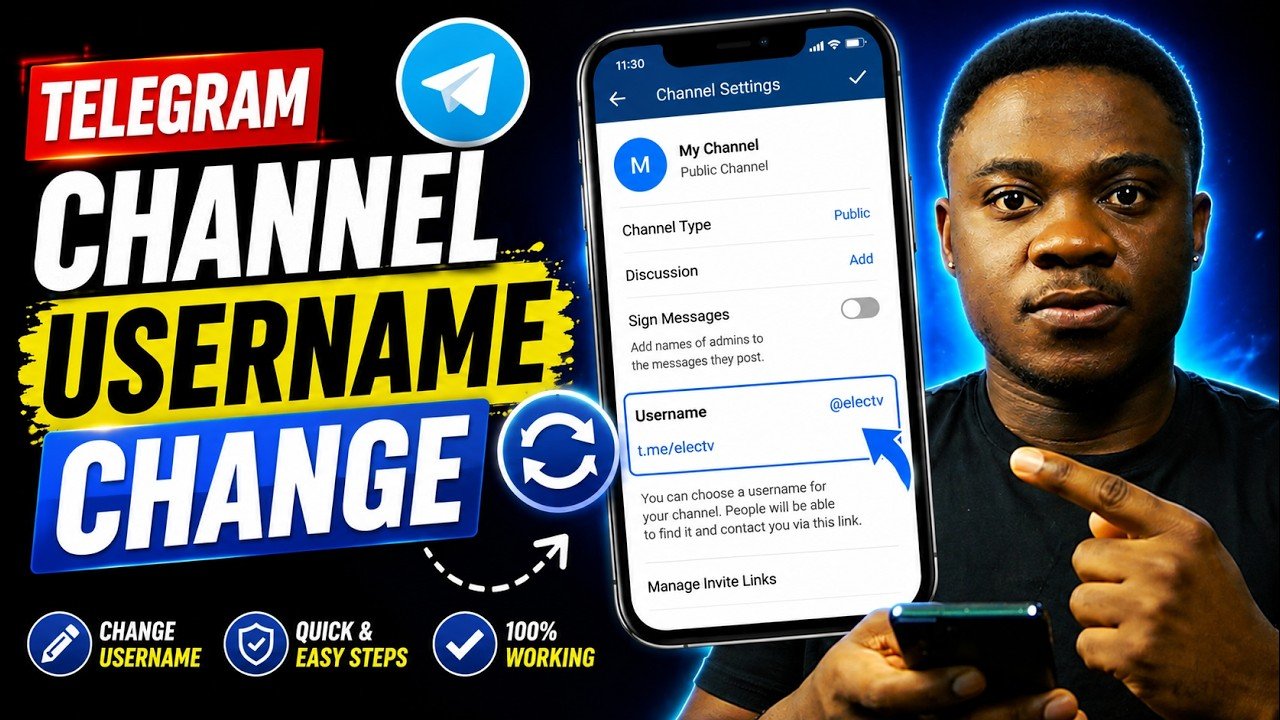

Channel Name vs. Channel Username: Know the Difference
Before making any changes, it is important to understand that Telegram channels actually have two separate identifiers, and mixing them up is one of the most common points of confusion for new channel owners.
Channel Name
This is the display title shown at the top of your channel and in subscribers’ chat lists. It does not need to be unique — many channels can share the exact same display name. You can change this freely, as often as you like.
Channel Username
This is your channel’s unique public handle, which forms the basis of your shareable link in the format t.me/yourusername. No two channels (or accounts) on all of Telegram can share the same username. This is the identifier people use to find your channel through Telegram’s search, and it is what this guide focuses on changing.
The key distinction: if you only want to update how your channel appears visually, change the Channel Name — it is unrestricted. If you want to change the actual public handle and link people use to find and join your channel, that is the Username, and it comes with specific rules covered below.
What Happens When You Change Your Channel Username?
This is an important point for channel owners to understand clearly: changing your username does not affect your subscriber count, your post history, or your channel’s content.
Here is exactly what stays the same:
- Your existing subscribers remain subscribed — no one is removed or needs to rejoin
- All previous posts and message history remain intact
- Your admin team and permissions stay exactly as configured
- Pinned messages, channel description, and profile photo are unaffected
The only thing that changes is your public link (t.me/yourusername). This means:
- Your old link will stop working once the username is changed, unless someone else claims it
- Anyone who had bookmarked, shared, or posted your old link elsewhere will need the new link to find your channel going forward
- Search results for your old username will no longer lead to your channel
Because of this, changing your username requires a bit of follow-up work to make sure your audience does not lose track of you — something we cover later in this guide.
How to Change Your Telegram Channel Username (Step-by-Step)
The process is straightforward and works the same way across Android, iPhone, and desktop versions of Telegram, with only minor differences in menu layout.
Step 1: Open the Telegram app and navigate to the channel whose username you want to change.

Step 2: Tap the channel name at the top of the screen to open the channel’s info page.
Step 3: Tap the pencil/edit icon (sometimes labeled “Edit”) to enter editing mode. You must be the channel owner or have the appropriate admin permissions to access this option.
Step 4: Tap Channel Type (on some versions, this may simply be labeled Username or found within channel settings).
Step 5: If your channel is currently set to Private, you will first need to switch it to Public to assign a username. If it is already Public, you will see your current username displayed here.
Step 6: Tap the existing username field and delete it, then type your desired new username.
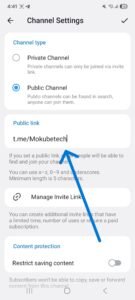
Step 7: Telegram will automatically check availability as you type. A green checkmark indicates the username is available; a red warning means it is already taken by another channel, group, or user.
Step 8: Once you have confirmed an available username, tap Save or Done (depending on your device) to apply the change.
That’s it — your channel’s new username and link (t.me/newusername) are active immediately.
Username Rules and Character Requirements
Telegram enforces specific formatting rules for all usernames, including those used for channels:
- Usernames must be at least 5 characters long
- Usernames can only contain Latin letters (A–Z), numbers (0–9), and underscores (_)
- No spaces, emojis, or special characters (other than underscores) are permitted
- The username must be currently unclaimed by any other Telegram account, group, or channel — usernames are unique across the entire platform, not just within the “channels” category
If your desired username is unavailable, Telegram will let you know immediately as you type, so it is worth having two or three backup options ready in case your first choice has already been taken.
What If You Want to Switch Your Channel From Private to Public First?
Many Telegram channels start out as Private, meaning they have no public username and can only be joined through a direct invite link. If your channel is currently private and you want to assign it a public username for the first time, follow these steps before attempting to change anything:
Step 1: Open your channel and tap the channel name to access channel info.
Step 2: Tap the edit/pencil icon.
Step 3: Tap Channel Type.
Step 4: Select Public Channel.
Step 5: Enter your desired username in the field provided, checking for the green availability checkmark.
Step 6: Tap Save to confirm.
Once your channel is public, it becomes searchable within Telegram and accessible via its t.me/username link, in addition to remaining accessible through any private invite links you may still have active.
Note: Switching a channel from Private to Public is reversible — you can switch back to Private at any time, though doing so will remove the public username and make the channel accessible only via invite link again.
Can You Get Your Old Username Back After Changing It?
This is a common concern, and the answer depends on timing. Once you change your channel’s username, the old username becomes available for any other Telegram user, group, or channel to claim. There is no guaranteed reservation period that protects your previous handle.
If your old username was well-known or had been promoted publicly, treat the change as effectively final — there is a genuine risk that someone else could claim it shortly after you release it, particularly if it was a short, memorable, or high-demand handle.
Some advanced users and digital marketplaces deal in trading or “swapping” desirable Telegram usernames, sometimes involving Telegram’s official Fragment platform for premium or auction-listed usernames. This is a more advanced and niche process generally relevant only to users actively buying, selling, or trading high-value usernames, rather than typical channel owners simply rebranding their channel.
How to Notify Your Subscribers After Changing Your Username
Since your old channel link stops working the moment you change your username, it is important to proactively update your audience. Here are the steps we recommend:
1. Post an announcement in your channel before or immediately after changing the username, clearly stating the new link and explaining the change.
2. Pin the announcement message at the top of your channel so it is the first thing new and existing subscribers see.
3. Update your channel link everywhere it is shared externally, including:
- Social media bios (Instagram, X, TikTok, etc.)
- Personal or business websites
- Email signatures
- Linktree or similar bio-link tools
- QR codes, which will need to be regenerated to point to the new link
4. Consider a brief transition period where you continue to monitor your old username (if it has not yet been claimed by someone else) in case anyone is still trying to reach your channel through outdated links or bookmarks.
Frequently Asked Questions
Will I lose subscribers if I change my channel’s username?
No. Changing your username has no effect on your existing subscriber count. Everyone who was already subscribed remains subscribed, regardless of the username change.
Does my old channel link still work after I change my username?
No. Once you change your username, your old t.me/ link stops directing to your channel. It becomes available for any other user, group, or channel to claim.
How many characters does a Telegram username need?
A minimum of 5 characters is required. There is no fixed maximum, though shorter, simpler usernames are generally easier for people to remember and search for.
Can I use numbers and underscores in my channel username?
Yes. Telegram usernames can include Latin letters, numbers, and underscores. Spaces, emojis, and other special characters are not permitted.
Who is allowed to change a channel’s username?
Only the channel owner, or an admin who has been specifically granted the relevant permission, can change the channel’s username.
Can I change my channel’s username more than once?
Yes. Unlike some platforms that impose a waiting period between changes, Telegram does not currently enforce a strict cooldown on how often you can change a channel’s username — though frequent changes are not recommended, since they disrupt your shareable link and can confuse subscribers.
What happens if I try to set a username that’s already taken?
Telegram will display a warning in real time as you type, letting you know the username is unavailable. You will need to choose a different one before you can save your changes.
Can I switch my channel back to Private after making it Public?
Yes. You can switch your channel’s type back to Private at any time through the same Channel Type settings menu. Doing so removes the public username, meaning the channel becomes accessible only via invite link going forward.
Do I need to notify Telegram support to change my username?
No. Username changes can be made entirely within the app by the channel owner or an authorized admin — no support request or approval process is required for standard username changes.
Is there a way to reserve or “claim” a premium username?
Yes, in some cases. Telegram operates a platform called Fragment, where certain short or desirable usernames can be bought, sold, or auctioned. This is separate from the standard, free username-change process covered in this guide and is typically only relevant to users seeking premium or collectible handles.
