Introduction
Have you been using your personal Facebook profile to promote your business, brand, blog, or public figure identity? If so, it might be time to make the switch to a Facebook Page. A Facebook Page is specifically designed for businesses, creators, and public personalities — and it comes with powerful tools that a personal profile simply cannot offer.
In this step-by-step guide, we’ll walk you through exactly how to convert your Facebook Profile to a Facebook Page using Facebook’s built-in migration tool. It’s easier than you think, and the benefits are well worth it.
Why Should You Convert Your Facebook Profile to a Page?
Before we dive into the steps, let’s understand why converting your personal profile to a Facebook Page is a smart move.
1. No Friend Limit
Personal Facebook profiles are capped at 5,000 friends. A Facebook Page, on the other hand, can have an unlimited number of followers. If you’re growing a brand or audience, this is a game-changer.
2. Access to Powerful Analytics
Facebook Pages come with Facebook Insights, a built-in analytics tool that shows you how your posts are performing, who your audience is, where they’re from, and when they’re most active. This data is invaluable for content creators and businesses.
3. Advertising Capabilities
You can only run Facebook Ads through a Facebook Page. If you ever plan to boost posts or run paid campaigns to reach a wider audience, you’ll need a Page, not a profile.
4. Professionalism and Credibility
A Page signals to visitors that you are a legitimate business, creator, or public figure. It includes features like business categories, contact information, call-to-action buttons, reviews, and more — all of which build trust with your audience.
5. Facebook Page Verification
Pages are eligible for the blue checkmark verification badge, which increases your credibility and visibility on the platform.
6. Scheduling and Management Tools
Facebook Pages integrate with Meta Business Suite and Creator Studio, giving you the ability to schedule posts, manage comments, and collaborate with a team — features unavailable on personal profiles.
What Happens When You Convert?
It’s natural to wonder what gets transferred and what changes when you convert. Here’s what Facebook carries over during the migration:
- ✅ Your profile name becomes the Page name
- ✅ Your profile picture becomes the Page profile picture
- ✅ Your Facebook friends and followers become Page followers (they will automatically follow your new Page)
- ✅ Your cover photo is transferred
- ❌ Your timeline posts, photos, and videos are NOT automatically transferred
- ❌ Your personal messages and private data are not moved to the Page
- ❌ You cannot convert back to a personal profile once the process is complete
Important: Make sure you back up any content you want to keep before starting the conversion process.
Before You Begin – Important Checklist
Before converting, go through this checklist to ensure a smooth transition:
- Download your Facebook data – Go to Settings > Your Facebook Information > Download Your Information. This archives all your posts, photos, and messages.
- Notify your friends – Let your friends know you’re converting so they know to follow your new Page.
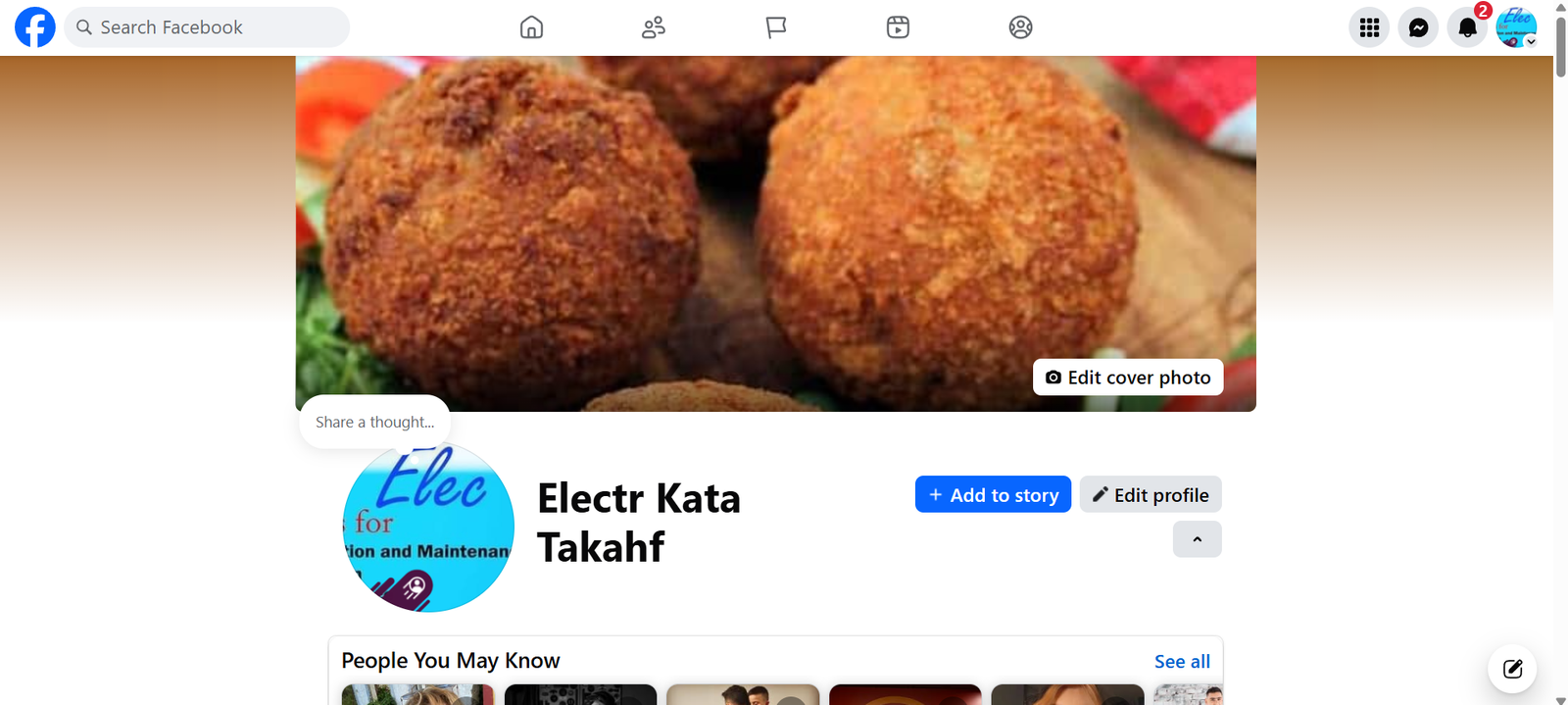
- Have a personal profile ready – After conversion, you’ll still need a personal Facebook account to manage your Page. Your old profile becomes a Page, so you’ll need a different personal account or you’ll be prompted to create one.
- Review your profile picture and cover photo – These will be transferred, so make sure they are professional and appropriate for a Page.
Step-by-Step Guide: How To Convert Facebook Profile To Facebook Page
Facebook has made the conversion process straightforward. Follow these steps carefully:
Step 1: Log In to Your Facebook Account
Open your browser or the Facebook app and log in to the personal profile you want to convert.
Step 2: Go to the Profile to Page Migration Tool
Navigate to the official Facebook migration page. You can find it by:
- Going to facebook.com/pages/create/migrate
- Or by visiting Facebook’s Help Center and searching for “Convert Profile to Page”
Facebook periodically updates its interface, so the exact location of this tool may vary slightly.
Step 3: Select a Page Category
Facebook will prompt you to choose a category for your new Page. Choose the category that best describes your Page:
- Public Figure – For celebrities, politicians, bloggers, influencers
- Artist, Band or Public Figure – For musicians and artists
- Business or Brand – For companies and services
- Entertainment – For shows, movies, or media
- Cause or Community – For non-profits and interest groups
Choose wisely, as this helps Facebook suggest your Page to the right audience.
Step 4: Review What Will Be Transferred
Facebook will show you a summary of what will be copied to your new Page — typically your profile name, profile picture, and cover photo.
Review this information carefully. If anything needs updating, exit the migration tool, make your changes, and then return.
Step 5: Confirm the Conversion
Once you’re satisfied with the preview, click the “Create Page” or “Convert” button to proceed.
Facebook will ask you to confirm one more time. Read the notice carefully — it will remind you that:
- The conversion is permanent and cannot be undone
- Friends will become followers of the new Page
- You will need a personal account to manage the Page
Click “Confirm” to complete the conversion.
Step 6: Set Up Your New Facebook Page
After the conversion is complete, your Page will be live. Now it’s time to optimize it:
- Add a bio or description – Briefly explain what your Page is about.
- Add contact information – Phone number, email, website, location.
- Set a username (vanity URL) – For example: facebook.com/YourBrandName
- Add a Call-to-Action button – Such as “Contact Us,” “Shop Now,” or “Sign Up.”
- Create your first Page post – Announce the new Page to your followers.

How To Convert Facebook Profile To Facebook Page on Mobile
If you’re using the Facebook mobile app, the process is similar:
- Open the Facebook app on your phone
- Tap the menu icon (three horizontal lines) in the bottom right (iOS) or top right (Android)
- Scroll down and tap “Settings & Privacy”
- Tap “Settings”
- Under “General,” look for “Migrate Profile to Page” or visit the migration link in your mobile browser: facebook.com/pages/create/migrate
- Follow the on-screen instructions as described in the steps above
Tip: Some users find it easier to complete the migration on a desktop browser for a smoother experience.