


1. Why Adding a Video to Google Slides Matters
Text and static images can only hold an audience’s attention for so long. Research consistently shows that audiences retain 95% of a message when delivered via video, compared to just 10% when reading text. For teachers, business professionals, marketers, and students alike, embedding a video directly inside a presentation eliminates the awkward alt-tab mid-presentation and keeps your audience fully immersed.
Adding a video to Google Slides is also one of the fastest ways to:
- Demonstrate a product or feature without switching windows
- Play a customer testimonial or explainer during a sales pitch
- Show a tutorial or how-to as part of a classroom lesson
- Add emotional impact with a short cinematic clip or trailer
- Break up long, text-heavy slides and re-energize your audience
- Make remote presentations more engaging during video calls
The good news: Google Slides makes it possible — once you know all the methods available to you.
2. What You Need Before You Start
Before diving into the methods, make sure you have the following ready:
- A Google account — Google Slides is free with any Gmail or Google Workspace account
- An active internet connection — video embedding requires connectivity, especially for YouTube videos
- The video URL if you are using a YouTube or external link
- The video uploaded to Google Drive if you plan to use a local file
- Proper sharing permissions set on Google Drive files so your audience can see them
⚠️ Important: Google Slides does not support direct upload of video files from your computer’s local storage. You must either use YouTube or first upload your video to Google Drive. This is the number one reason people get stuck — they try to upload a .mp4 directly and can’t find the option.
Method 1 — Insert a YouTube Video (The Most Common Way)
This is the method almost every basic tutorial covers — and for good reason. It works well for the vast majority of presentations. Here is exactly how to do it.
No copy-pasting required — find your video without leaving the app
- Open your Google Slides presentation and navigate to the slide where you want the video to appear.
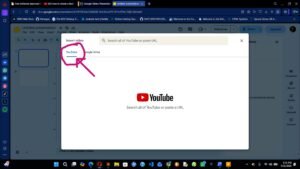
- Click on the top menu bar and select Insert, then click Video from the dropdown menu.
- A dialog box will appear. The first tab is labeled “Search” — type your search term (e.g., “how to tie a tie” or your brand name) directly in the search bar.
- Browse the YouTube results that appear and click the thumbnail of the video you want.
- Click the blue Select button in the bottom-right corner of the dialog.
- The video will be embedded directly on your slide. Drag it to resize and reposition it as needed.
💡 Tip: This method is ideal for public YouTube videos. The video streams live from YouTube when played, so a stable internet connection at presentation time is essential.
Method 2 — Insert via YouTube URL (The Underused Trick)
Most people do not realize there is a second tab in the Insert Video dialog. Instead of searching, you can paste in the exact YouTube URL — which is far faster when you already have the video link ready.
The fastest way when you already have the video link
- Go to YouTube and open the video you want to embed. Copy the URL from your browser’s address bar (e.g., https://www.youtube.com/watch?v=XXXXXX).
- Return to Google Slides. Click Insert → Video.
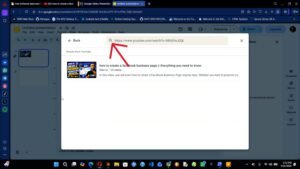
- In the dialog box, click the second tab labeled “By URL”.
- Paste the YouTube URL into the text field. The video preview will appear almost instantly.
- Click Select to insert it onto your slide.
📌 Bonus: You can also paste a YouTube short URL (e.g., youtu.be/XXXXXX) and it works just as well. Both formats are supported by Google Slides.
Method 3 — Insert Video from Google Drive
This is the method you need when you want to use your own video file — a recorded presentation, a client demo, a product walkthrough, or any custom footage that is not on YouTube. The video must first be uploaded to Google Drive.
Perfect for private, custom, or unlisted videos
- First, upload your video to Google Drive. Go to drive.google.com, click New → File Upload, and select your video file. Supported formats include MP4, MOV, AVI, and WMV.
- Wait for the upload to fully process. Google Drive needs to transcode the video before it can be embedded — this can take a few minutes for larger files.
- Return to Google Slides. Click Insert → Video.
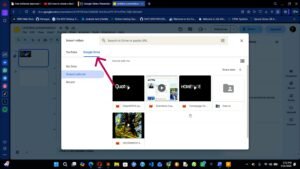
- Click the third tab labeled “Google Drive”.
- Browse My Drive, Shared with me, or use the Recent tab to find your uploaded video file.
- Click the video, then click Select. Your video is now embedded on the slide.
⚠️ Sharing Permissions Matter: If you share your presentation with others or present to an audience, make sure the Google Drive video file is set to “Anyone with the link can view”. If the file is set to private, viewers who do not have access to your Drive will see a blank video player.
Method 4 — Embed a Video Using a Hyperlink
Sometimes you do not need a full embedded video player — you just need a clickable link that opens the video in a new tab. This is a lighter-weight approach that works when internet connectivity might be unpredictable or when you want a cleaner slide layout.
Cleaner slides, one-click access to any video platform
- Add a text box, button shape, or image to your slide that will act as the clickable element (e.g., a play button icon, or text that says “Watch Demo”).
- Select that element, then press Ctrl+K (Windows) or Cmd+K (Mac) to open the hyperlink dialog. Alternatively, right-click and choose Link.
- Paste the video URL (YouTube, Vimeo, Google Drive, or any streaming platform).
- Click Apply. During your presentation, clicking this element will open the video in a new browser tab.
✅ Best for: Vimeo videos, unlisted YouTube videos, videos on your own website, or any platform other than YouTube. This works with any video URL from any source.
Method 5 — The Secret “By URL” Method Nobody Mentions
Here is the trick that almost no tutorial covers. The “By URL” tab in Google Slides’ Insert Video dialog is not just for YouTube. It also supports direct links to Google Drive video files — which means you can bypass the Drive file picker entirely and embed a video in seconds using just the sharable link.
- Go to Google Drive, right-click your video file, and select “Share”. Set the access to “Anyone with the link” and copy the shareable link.
- The link will look like: https://drive.google.com/file/d/FILE_ID/view?usp=sharing
- Return to Google Slides. Click Insert → Video → By URL.
- Paste the Google Drive share link into the URL field.
- Google Slides will recognize it as a Drive video and show a preview. Click Select.
💡 Why This Is Powerful: This method is perfect when you are collaborating on a presentation and someone else needs to add a video from their own Drive — they simply share the link. No browsing through multiple Drive folders.
8. How to Customize Your Video After Inserting It
Once your video is on the slide, you have more control than most people realize. Right-click the video and select “Format options” to access a powerful set of controls.
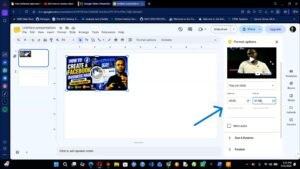
8.1 Set a Start Time and End Time
This is one of the most useful — and most overlooked — features. You can tell Google Slides to start the video at a specific timestamp (e.g., 1:30) and stop it at another (e.g., 3:00), so your audience only sees the relevant portion without any manual scrubbing.
- Right-click the video on the slide and select Format Options.
- Look for the Video Playback section in the right-hand panel.
- Enter your desired Start Time (e.g., 0:45) and End Time (e.g., 2:15).
- Close the panel — the settings are saved automatically.
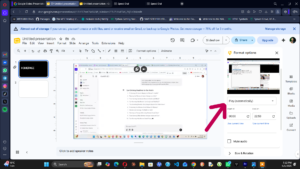
8.2 Set Autoplay on Slide Open
Under the same Video Playback section, you will see a dropdown labeled “Play”. Change it from “When clicked” to “Automatically” to have the video begin playing the moment you advance to that slide — great for dramatic reveals or opening hooks.
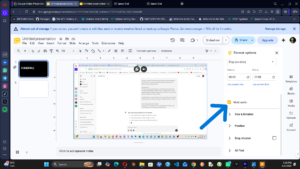
8.3 Mute the Video
Need to show footage without audio? There is a Mute Audio checkbox right in the Format Options Video Playback panel. One click, no fuss.
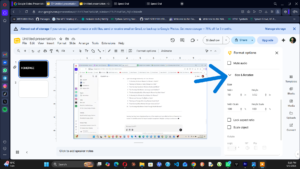
8.4 Resize and Reposition
Click and drag the handles on the edges and corners to resize your video. Hold Shift while resizing to maintain the aspect ratio. Use the Position and size option (right-click → Format Options → Position and size) for pixel-perfect placement.
📌 Full-Screen Tip: To make a video fill the entire slide for maximum impact, right-click → Format Options → Position and size → set X to 0, Y to 0, Width to 25.4cm, Height to 14.29cm (standard 16:9 slide dimensions).
This video will help You Out
10. Troubleshooting Common Video Problems
Here are the most frequent issues people encounter — and exactly how to fix them.
Cause: The Google Drive video has not finished processing, or the sharing permission is set to private.
Fix: Wait for Drive to finish transcoding the video (check by opening the file in Drive directly). Then confirm the file is shared as “Anyone with the link can view.”
Cause: The YouTube video has been taken down, set to private, or restricted in certain regions.
Fix: Download the video and upload it to Google Drive instead. Alternatively, find a mirror of the content on YouTube.
Cause: The “Mute audio” checkbox was accidentally enabled in Format Options, or the system volume is low.
Fix: Right-click the video → Format Options → Video Playback → uncheck “Mute audio.” Also check your computer’s master volume and the browser tab’s mute status.
Cause: The playback setting is still set to “When clicked.”
Fix: Right-click the video → Format Options → Video Playback → change “Play” dropdown from “When clicked” to “Automatically.”
Cause: The Google Drive video file is not shared with the people viewing the presentation.
Fix: Open the video in Google Drive → click Share → change from “Restricted” to “Anyone with the link” → set role to “Viewer.”
Frequently Asked Questions
Can I insert a video from my computer directly into Google Slides?
Not directly. Google Slides does not support uploading video files from your computer. You must first upload the file to Google Drive, and then embed it into your presentation from there. Once in Drive, the process only takes a few extra seconds.
Can I add a Vimeo video to Google Slides?
Google Slides does not natively support Vimeo video embedding the way it does YouTube. The best workaround is to use the Hyperlink method: add a clickable image or button on your slide that links to the Vimeo URL. This opens the video in a new browser tab when clicked during presentation mode.
Will the video play when someone views my shared presentation?
Yes, as long as: (1) they have an internet connection, and (2) if the video is from Google Drive, the file permissions are set to “Anyone with the link can view.” YouTube videos are publicly accessible by default and will play for all viewers.
Can I make the video autoplay when the slide appears?
Yes. Right-click the embedded video, select Format Options, go to the Video Playback section, and change the Play setting from “When clicked” to “Automatically.” This setting works in Presentation mode but not in the editing view.
Why does my video look pixelated or blurry?
This usually happens when the original video file has a low resolution, or when the video is being compressed by Google Drive during transcoding. Always upload videos in at least 720p (HD) for best results. Also ensure your browser’s zoom level is set to 100% when presenting.
Can I embed a video in Google Slides on a phone or tablet?
The Google Slides mobile app has limited editing capabilities. While you can view embedded videos on mobile, inserting a new video is best done from a desktop or laptop browser for the full Insert Video dialog experience.
Does the video loop in Google Slides?
There is no native loop toggle in Google Slides. However, you can simulate looping by setting the start and end times to a specific clip, using the autoplay setting, and advancing back to the same slide. For true looping, consider using a GIF instead of a video, or hosting the video as a Looping HTML embed via hyperlink.
Can I download a Google Slides presentation with the video included?
When you export a Google Slides presentation as a .pptx (PowerPoint) file, videos are not embedded in the file — only a link or placeholder is saved. The video will only play in the PowerPoint file if the viewer also has access to the original source (YouTube or Google Drive). For fully offline presentations, consider using PowerPoint’s native “Insert Online Video” feature instead.
