


The Easiest Way to Set Up Yahoo Mail (Beginners Welcome)
Email is one of the most important tools you can have in today’s connected world — whether you’re staying in touch with family, applying for a job, or signing up for your favorite websites. If you’ve decided to go with Yahoo Mail, you’ve made a great choice. Yahoo Mail is free, easy to use, and packed with features that make managing your emails simple and enjoyable.
But if you’ve never set up an email account before, the whole process might feel a little overwhelming. Don’t worry — that’s exactly why this guide exists.
In this guide, I’ll show you how to set up a Yahoo Mail account from the beginning. You do not need any technical experience. By the end, you should have a working Yahoo Mail account that you can use for personal messages, job applications, online sign-ups, and more.
What Is Yahoo Mail?
Before we dive into the steps, let’s take a moment to understand what Yahoo Mail is and why so many people use it.
Yahoo Mail is a free email service provided by Yahoo, one of the oldest and most recognized names on the internet. It allows you to send and receive emails, attach files, organize your inbox into folders, and much more — all from your web browser or a smartphone app.
Here are a few reasons why Yahoo Mail remains popular:
- It’s completely free — No subscription or payment required.
- Generous storage — Yahoo Mail offers 1 terabyte (TB) of storage, which means you can keep thousands of emails without worrying about running out of space.
- Clean, easy-to-use design — The interface is beginner-friendly and intuitive.
- Works on all devices — You can access your Yahoo Mail on a computer, tablet, or smartphone.
- Built-in spam protection — Yahoo automatically filters out most junk mail.
Now that you know what Yahoo Mail offers, let’s set up your account.
Step 1 — Go to the Yahoo Mail Website
Open your preferred web browser and type mail.yahoo.com into the address bar at the top of your screen. Press Enter on your keyboard.
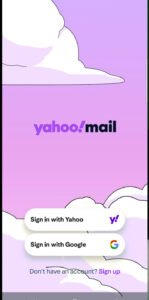
You’ll land on the Yahoo Mail homepage. If you already have a Yahoo account from a previous time, you’ll see a login screen. Since we’re creating a new account, look for the option that says “Create an account” or “Sign Up.” Click on it.
If you’re using the Yahoo Mail mobile app, open the app and tap “Create account” on the welcome screen.
Step 2 — Fill in Your Personal Information
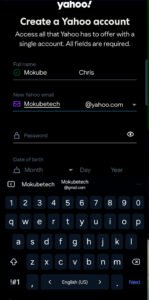
You’ll now see a sign-up form. Don’t be intimidated — it only asks for basic information. Here’s what each field means and what to enter:
First Name and Last Name Enter your real first and last name. This is what will appear when you send emails to others.
Email Address This is where you choose your Yahoo email address. Your email will look like this: yourname@yahoo.com
Try typing in a name you’d like to use — for example, your first name and last name together (like Mokubetech@yahoo.com). If that name is already taken, Yahoo will suggest alternatives. Choose one that you’ll easily remember.
Tip: Keep your email address professional and simple, especially if you plan to use it for work or job applications.
Password Create a strong password that you’ll use to log in. A good password:
- Is at least 8 characters long
- Includes a mix of uppercase and lowercase letters
- Contains at least one number
- Has at least one special character (like !, @, or #)
For example: Sunny$Day2024 is much stronger than just “sunshine.”
Important: Write your password down somewhere safe — like a notepad at home — so you don’t forget it.
Date of Birth Enter your birthdate using the drop-down menus. This is used to verify that you meet the minimum age requirement.
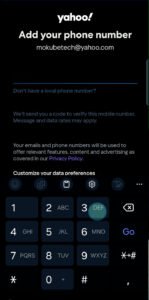
Phone Number (Optional but Recommended) Adding your phone number makes it much easier to recover your account if you ever forget your password. It’s also used for security verification.
Once you’ve filled in all the fields, click “Continue.”
Step 3 — Verify Your Phone Number
Yahoo will send a text message (SMS) to the phone number you provided. This message contains a 5-digit verification code.
Check your phone for the text message. Once you receive it, type the code into the verification box on your screen and click “Verify.”
If you didn’t receive the code within a minute or two, click “Resend code” to get a new one.
Note: If you chose not to enter a phone number, Yahoo may ask you to verify your identity another way, such as through an alternate email address.
Once your number is verified, your account is officially created! Yahoo will welcome you to your new inbox.
Step 4 — Explore and Customize Your Inbox
Congratulations — you now have a Yahoo Mail account! When you first open your inbox, it might feel a little unfamiliar. Let’s take a quick tour so you know where everything is.
The Main Sections of Your Yahoo Mail Inbox
Inbox This is where all your incoming emails land. Any email someone sends you will appear here first.
Sent Every email you send out is automatically saved here. This is useful for keeping track of what you’ve written.
Drafts If you start writing an email but don’t finish it, Yahoo saves it here automatically. You can come back and finish it later.
Spam Emails that Yahoo suspects are junk or unwanted will go here. It’s a good idea to check this folder occasionally in case a legitimate email was accidentally sent there.
Trash When you delete an email, it goes to the Trash folder. Emails in Trash are permanently deleted after 7 days. You can also manually empty the Trash folder.
How to Change Your Theme
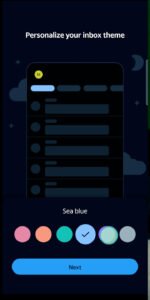
Yahoo Mail lets you choose a background theme for your inbox to make it feel more personal. Here’s how:
- Click on the Settings gear icon (⚙️) in the top right corner of your inbox.
- Select “More settings.”
- Click on “Viewing email” from the left menu.
- Look for the “Theme” section and browse through the available options.
- Click on any theme you like to apply it instantly.
Setting Up Your Display Name
Your display name is what people see when they receive an email from you. By default, Yahoo uses the name you entered during sign-up. To change it:
- Go to Settings (⚙️) and click “More settings.”
- Click on “Mailboxes” in the left menu.
- Click on your email address and look for the “From name” field.
- Type in the name you’d like people to see.
- Click “Save.”
Step 5 — Send Your First Email
Now that your inbox is set up, let’s try sending your first email. It’s easier than you think!
- Click the “Compose” button — it’s usually a large button in the top left corner of your inbox. On mobile, it looks like a pencil icon.
- A new message window will open.
- In the “To” field, type the email address of the person you want to send an email to.
- In the “Subject” field, type a brief description of what your email is about. For example: “Hello!” or “Question about the meeting.”
- Click in the large white area below the subject line and type your message.
- When you’re ready to send, click the blue “Send” button.
Your email will be delivered almost instantly to the recipient’s inbox. A copy will automatically be saved in your Sent folder.
Step 6 — Read and Reply to Emails
When someone sends you an email, it appears in your Inbox with the sender’s name, subject, and the time it was received.
To read an email: Simply click on it. The full message will open.
To reply to an email:
- Open the email you want to reply to.
- Click the “Reply” button (usually shown as an arrow pointing left, or the word “Reply”).
- Type your response in the box that appears.
- Click “Send.”
To reply to everyone on an email (if there were multiple recipients): Click “Reply All.”
To forward an email to someone else:
- Open the email.
- Click “Forward.”
- Enter the email address of the person you want to forward the message to.
- Add any additional message if you like, then click “Send.”
Step 7 — Organize Your Inbox with Folders
As you start using Yahoo Mail more, your inbox can get cluttered. Creating folders helps you stay organized.
How to Create a Folder:
- In the left sidebar of your inbox, scroll down and look for “Folders.”
- Click the “+” (plus) icon next to Folders.
- Type a name for your new folder — for example: “Family,” “Work,” or “Receipts.”
- Press Enter to create it.
How to Move an Email to a Folder:
- Right-click on the email you want to move (or tap and hold on mobile).
- Select “Move to folder.”
- Choose the folder from the list.
This simple habit can make a huge difference in keeping your inbox tidy and easy to navigate.
Step 8 — Set Up Yahoo Mail on Your Smartphone
You can access your Yahoo Mail from any web browser, but having the app on your phone makes checking emails much more convenient.
For iPhone (iOS):
- Open the App Store on your iPhone.
- Search for “Yahoo Mail.”
- Tap “Get” and then “Install.”
- Once installed, open the app and tap “Sign in.”
- Enter your Yahoo email address and password.
- Tap “Sign in” and you’re done!
For Android:
- Open the Google Play Store.
- Search for “Yahoo Mail.”
- Tap “Install.”
- Once installed, open the app, tap “Sign in,” and enter your credentials.
The Yahoo Mail app sends you notifications whenever a new email arrives, so you’ll never miss an important message.
Step 9 — Keep Your Account Secure
Now that your Yahoo Mail account is up and running, it’s important to keep it safe. Here are a few simple steps to protect your account:
Add a Recovery Phone Number and Email
If you ever forget your password or get locked out, Yahoo will use these to help you get back in.
- Go to Settings (⚙️) > “Security.”
- Add your phone number and an alternate email address.
Turn On Two-Step Verification
Two-step verification adds an extra layer of security. Even if someone gets your password, they won’t be able to log in without also having access to your phone.
- Go to Settings > “Security.”
- Find “Two-step verification” and toggle it on.
- Follow the prompts to set it up.
Never Share Your Password
This seems obvious, but it’s worth stating: never give your Yahoo password to anyone — not even someone claiming to be from Yahoo support. Yahoo will never ask for your password through email or phone.
Watch Out for Phishing Emails
Phishing emails are fake messages designed to trick you into giving up your personal information. Be cautious of:
- Emails asking you to “confirm your account” by clicking a link
- Urgent messages claiming your account will be deleted
- Requests for your password or financial information
When in doubt, don’t click any links. Instead, go directly to mail.yahoo.com by typing the address yourself.
Step 10 — Useful Yahoo Mail Features You Should Know
Once you’re comfortable with the basics, here are a few extra features worth exploring:
Filters and Automatic Sorting
Yahoo Mail can automatically sort incoming emails into folders based on rules you set. For example, you can tell Yahoo to send all emails from your bank directly into a “Finance” folder.
- Go to Settings > “More settings.”
- Click “Filters.”
- Click “Add new filter” and set your rules.
Yahoo Mail Search
Looking for an old email? Use the search bar at the top of your inbox. Type in the sender’s name, a word from the subject, or a keyword from the email body, and Yahoo will find it for you instantly.
Unsubscribe from Unwanted Emails
If your inbox is filling up with newsletters or promotional emails you no longer want, Yahoo makes it easy to unsubscribe.
- Open the unwanted email.
- Click the “Unsubscribe” button that appears at the top of the message (Yahoo identifies these automatically).
- Confirm your choice.
Vacation Response (Auto-Reply)
Going on holiday? Set up an automatic reply so people know you’re unavailable.
- Go to Settings > “More settings.”
- Click “Vacation response.”
- Toggle it on and type your message.
- Set the start and end dates and click “Save.”
Common Problems and How to Fix Them
Even with a simple setup, you might run into a few hiccups. Here are solutions to the most common Yahoo Mail issues beginners encounter:
“I Forgot My Password”
- Go to mail.yahoo.com and click “Sign in.”
- Enter your email address and click “Next.”
- On the password screen, click “Forgot password?”
- Follow the on-screen steps to reset it using your phone number or recovery email.
“I’m Not Receiving Any Emails”
- Check your Spam folder — the email might have been filtered there.
- Make sure your inbox isn’t full (Yahoo gives you 1TB, but it’s worth checking).
- Ask the sender to resend the email and confirm they used the correct address.
“My Account Was Hacked”
If you suspect someone else is accessing your account:
- Change your password immediately.
- Check your “Recent activity” under Account Security settings.
- Remove any unfamiliar devices that are signed in.
- Enable two-step verification if you haven’t already.
“Yahoo Mail Is Not Loading”
- Refresh your browser page (press F5 or click the circular refresh arrow).
- Clear your browser’s cache and cookies (found in your browser settings).
- Try a different browser or device.
- Check if Yahoo is experiencing a service outage at downdetector.com.
Frequently Asked Questions (FAQs)
Is Yahoo Mail really free? Yes, Yahoo Mail is completely free to use. There is a premium version called Yahoo Mail Pro that removes ads and offers extra features, but the standard account costs nothing
.
Can I use Yahoo Mail without a phone number? You can sign up without a phone number, but Yahoo strongly recommends adding one for account recovery and security purposes.
How do I add an attachment to an email? When composing an email, click the paperclip icon at the bottom of the compose window. Browse your files, select the one you want to attach, and click “Open.”
Can I use Yahoo Mail on multiple devices? Yes. You can sign in to your Yahoo Mail account on as many devices as you like — phone, tablet, laptop, or desktop — and your emails will sync across all of them.
Does Yahoo Mail have a mobile app? Yes. The Yahoo Mail app is free and available for both iPhone (iOS) and Android devices. Search for “Yahoo Mail” in your device’s app store.
What happens if I delete an email by accident? Deleted emails go to the Trash folder, where they stay for 7 days before being permanently removed. Open the Trash folder and move the email back to your inbox if you need to recover it.
this video will help you out
