


Introduction
Instagram has done it again. Just when you thought you had your social media experience perfectly under control, Meta quietly rolled out a brand-new feature called Instagram Instants — and users are not happy about it.
Within days of the rollout, Reddit threads exploded with complaints, X (formerly Twitter) was flooded with frustrated posts, and “how to turn off Instagram Instants” became one of the most searched queries on the internet. The reason? Instagram Instants sends a photo to your entire Friends list the moment you tap the shutter button — no preview, no confirmation, no second chance.
On an app where users are accustomed to carefully cropping, filtering, and captioning every image before sharing it, this instant-send design feels like a serious invasion of privacy and personal control. One user summed it up perfectly: “This new Instagram Instant thing is NOT safe.”
If you are here, chances are you accidentally stumbled upon the feature, sent a photo you never meant to share, or simply want it gone before it causes you any embarrassment. You are in the right place.
In this complete guide, we will explain exactly what Instagram Instants is, why so many people want it removed, and give you clear step-by-step instructions to turn off Instagram Instants on both Android and iPhone right now.

What Is Instagram Instants?
Instagram Instants is a new feature rolled out by Meta in 2025, designed to bring what the company calls “spontaneous, unfiltered photo sharing” back to social media. Instagram describes it as a way to share in-the-moment snapshots with your followers without the pressure of editing or polishing your content.
Here is how it works:
- The feature lives inside your Instagram inbox — look for a small stack of mini photos in the bottom-right corner of your DM screen
- When you tap it for the first time, Instagram walks you through a brief introduction explaining that Instants disappear after being viewed, there is no viewers list, and reactions and replies are private
- The app then takes you directly to a camera interface with a shutter button and a toggle to choose between Friends and Close Friends — set to Friends by default
- The moment you tap the shutter button, the photo is immediately sent to everyone on your Friends list — with zero preview or confirmation step
- Recipients receive a notification, open the Instant, view the photo, and it disappears after being seen — similar to Snapchat
- Instants are saved in your archive for up to one year and can be shared as a recap to your Stories
- Friends can reply to your Instants, and those replies arrive as regular DMs
On paper, it sounds like a fun, carefree way to share everyday moments. In practice, the complete lack of a preview or confirmation step has led to countless users accidentally sending blurry, unflattering, or completely unintended photos to their entire friends list before they even realised what happened.
Why Are People Rushing to Turn Off Instagram Instants?
The backlash against Instagram Instants has been significant and immediate. Here is why so many users want it disabled:
1. Photos Send Instantly Without Confirmation
The most alarming aspect of Instagram Instants is that there is absolutely no confirmation step. You open the camera, tap the button, and the photo is already on its way to everyone on your Friends list. On an app where users spend considerable time curating their content, this design feels deeply counterintuitive and invasive.
2. Default Audience Is Set to “Friends” — Not Close Friends
Unless you manually switch the toggle to Close Friends before shooting, your Instant goes to your entire Friends list. For users with hundreds or even thousands of friends, that is a massive unintended audience.
3. No Viewers List Means No Accountability
Instagram Instants deliberately hides the list of who has seen your photo. While this is framed as a privacy feature, many users find it unsettling — you genuinely do not know who has viewed your image.
4. Easy to Trigger by Accident
The Instants section is embedded directly into the inbox, and the camera launches quickly once you tap into it. Many users have accidentally entered the feature and sent an unintended photo simply by curiously tapping the icon without understanding what it does.
5. Privacy Concerns
With the feature defaulting to your full Friends list and no opt-in confirmation, privacy-conscious users feel the feature was rolled out without adequate user consent or adequate warning about its behaviour.
6. Inbox Clutter
Even if you never send an Instant yourself, the feature fills your inbox with disappearing photo stacks from others — which many users find distracting and cluttering.
The good news is that turning off Instagram Instants is straightforward. Let us walk through it step by step.
How to Turn Off Instagram Instants on Android (Step-by-Step)
Follow these steps carefully to disable the Instants feature on your Android device:
Step 1: Open the Instagram app on your Android phone. Make sure you are signed in to the account where you want to disable Instants.
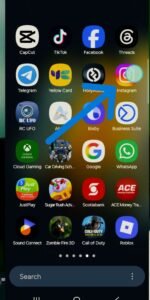
Step 2: Tap your profile picture in the bottom-right corner of the screen to go to your profile page.

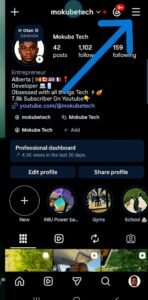
Step 3: Tap the three horizontal lines (☰) in the top-right corner of your profile page to open the settings menu.
Step 4: From the menu that appears, tap Settings and Privacy (or simply Settings depending on your app version).
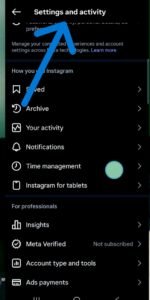 Step 5: Scroll down until you find Content Preferences and tap it.
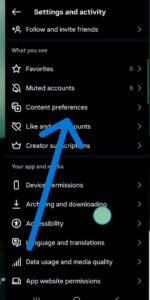
Step 6: Inside Content Preferences, look for the option labelled Hide Instants in Inbox and tap on it.
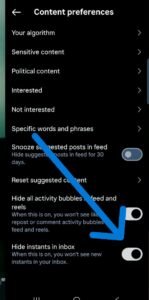
Step 7: Toggle the setting On (it should turn blue or green depending on your device). This hides the Instants feature from your inbox entirely.
Done! Once this is enabled, you will no longer see the Instants section in your inbox, and you will not receive any Instants from others either. The feature is effectively removed from your Instagram experience.
How to Turn Off Instagram Instants on iPhone (Step-by-Step)
The steps on iPhone are nearly identical to Android:
Step 1: Open the Instagram app on your iPhone or iPad.
 Step 2: Tap your profile picture at the bottom-right corner to navigate to your profile.
 Step 3: Tap the three lines (☰) in the top-right corner of the screen to open the menu.
 Step 4: Tap Settings and Privacy.
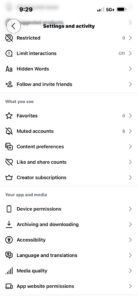 Step 5: Scroll down and tap Content Preferences.
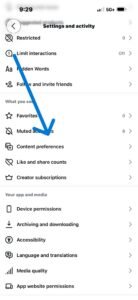 Step 6: Find the Hide Instants in Inbox toggle and tap it to turn it on.
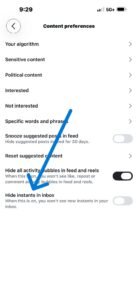 Step 7: The toggle will activate, confirming that Instants are now hidden from your inbox.
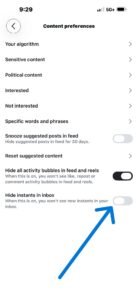 Done! Your Instagram experience on iPhone is now Instants-free.
Tip: If you cannot find the option in Content Preferences, make sure your Instagram app is fully updated to the latest version via the App Store. The Instants feature — and the option to hide it — may not appear on older versions of the app.
Alternative: Temporarily Stop Receiving Instants Without Turning Off the Feature
Not sure if you want to disable Instants permanently? There is a middle-ground option that lets you temporarily pause receiving Instants without fully turning off the feature:
Step 1: Open your Instagram inbox (DM section).
Step 2: Locate the small stack of photos in the bottom-right corner of your inbox — this is the Instants icon.
Step 3: Press and hold the Instants stack.
Step 4: While holding, swipe right.
This temporarily stops you from receiving Instants. The pause lasts for a set period, after which Instants will resume appearing in your inbox. If you want a permanent solution, use the Hide Instants in Inbox toggle described in the steps above.
How to Unsend an Instagram Instant You Accidentally Shared
If you accidentally sent a photo through Instagram Instants before you even realised what was happening, here is what you can do:
The Undo Button (Act Fast!)
The moment a photo is sent as an Instant, a brief Undo option appears just below the shutter button. If you catch it in time — within the first second or two — tapping Undo will retract the Instant before it is delivered.
This window is extremely short, so you need to act immediately.
If the Undo Window Has Passed
Unfortunately, if the Undo window has closed and the Instant has already been delivered, your options are limited. Since Instants disappear after being viewed and there is no viewers list, you cannot know for certain who has already seen the photo.
Here is what you can do:
Step 1: Go to your Instagram inbox and find the Instants section.
Step 2: Tap and hold the Instant you sent.
Step 3: Look for an Unsend or Delete option. If the Instant has not yet been opened by all recipients, unsending may remove it for those who have not viewed it yet.
Step 4: If the photo has already been viewed, it has already disappeared from the recipient’s side — but the damage may already be done in terms of who saw it.
Going forward, the best protection against accidental Instants is simply to disable the feature entirely using the steps outlined above.
What Happens When You Turn Off Instagram Instants?
Many users wonder what exactly changes after they disable the feature. Here is a clear breakdown:
What Changes When You Hide Instants
- The Instants icon disappears from your inbox
- You will not receive any Instants sent by your friends or followers
- You cannot send Instants while the feature is hidden
- Your inbox returns to its previous, cleaner layout
What Does NOT Change
- Your regular DMs and conversations are completely unaffected
- Your Stories, Reels, and Posts are unaffected
- Your profile, followers, and following remain exactly as they were
- Any Instants you previously sent are saved in your archive for up to one year (even after you hide the feature)
How to Turn Instagram Instants Back On
Changed your mind and want to try the feature again? Re-enabling Instants is just as simple:
Step 1: Go to your Instagram profile → tap the three lines (☰)
Step 2: Tap Settings and Privacy → Content Preferences
Step 3: Find Hide Instants in Inbox and toggle it Off
The Instants feature will reappear in your inbox immediately.
How to Turn Off Instagram Instants Notifications
Even if you decide to keep the Instants feature active, you may want to stop receiving push notifications every time someone sends you an Instant. Here is how:
On Android:
Step 1: Go to your phone’s Settings (not Instagram settings — the system Settings app)
Step 2: Tap Apps → find and tap Instagram
Step 3: Tap Notifications
Step 4: Either turn off all Instagram notifications, or look for a specific Instants notification category and disable it
On iPhone:
Step 1: Open your iPhone Settings app
Step 2: Scroll down and tap Instagram
Step 3: Tap Notifications
Step 4: Toggle off Allow Notifications to disable all Instagram notifications, or adjust individual notification types if specific categories are available
Alternatively, you can manage notifications from within the Instagram app itself:
Step 1: Go to Instagram → Settings and Privacy → Notifications
Step 2: Look for an Instants or Direct Messages category
Step 3: Adjust the settings to suit your preferences
Tips to Avoid Accidentally Sending an Instagram Instant in the Future
Even if you keep Instants enabled, a few habits can prevent embarrassing accidental sends:
Always check the toggle before shooting: Before tapping the shutter in the Instants camera, confirm whether the audience is set to Friends or Close Friends. Switching to Close Friends dramatically reduces your accidental audience.
Be careful tapping the inbox icon: The Instants icon sits in the bottom-right corner of your inbox. If you are navigating quickly, it is easy to tap it accidentally and open the camera. Slow down and pay attention when navigating your inbox.
Disable the feature if you do not use it: The simplest protection is to hide Instants entirely if you have no interest in the feature. There is no penalty for disabling it, and you can always re-enable it later.
Act immediately if you send by accident: Keep the Undo button in mind. The moment you realise you have accidentally triggered the shutter, tap Undo immediately — it is your only real-time option for retracting the photo.
Frequently Asked Questions About Instagram Instants
What is Instagram Instants?
Instagram Instants is a feature that allows users to send spontaneous, unfiltered photos to their Friends or Close Friends list. Photos are sent the moment you tap the shutter button — with no preview or confirmation — and they disappear after being viewed by recipients.
Why did Instagram Instants send a photo without my permission?
The feature is designed to send immediately upon tapping the shutter. Many users trigger it accidentally by tapping the Instants icon out of curiosity without realising it opens a live camera that sends instantly. Instagram does provide a brief introductory screen the first time you open Instants, but many users skip past it quickly.
Can I stop just one person from seeing my Instants without turning off the feature?
Not directly through a per-person Instants setting. However, if you do not want a specific person to receive your Instants, you can remove them from your Friends list, or switch your Instants audience to Close Friends and ensure that person is not on your Close Friends list.
Do Instagram Instants really disappear?
Yes. Once a recipient views an Instant, it disappears and cannot be viewed again. Instants are not permanently stored in the recipient’s inbox. However, they are saved in your own archive for up to one year, and can be shared as a Story recap.
Can people screenshot my Instants?
Instagram does not currently notify you if someone screenshots an Instant. As with any disappearing content on any platform, there is always a risk that recipients could screenshot or screen-record the photo before it disappears.
Is Instagram Instants the same as Snapchat?
They are similar in concept — both involve sending disappearing photos. However, Instagram Instants sends to your entire Friends list by default (not a selected group of recipients), which is a key difference from Snapchat’s model where you choose individual recipients each time.
Will hiding Instants affect my other Instagram features?
No. Hiding Instants only affects the Instants section of your inbox. All other features — Stories, Reels, Posts, regular DMs, and everything else — continue to work exactly as normal.
How long are Instants saved in my archive?
Instagram saves your sent Instants in your archive for up to one year, even after recipients have viewed and the Instant has disappeared from their end.
Is Instagram Instants available in all countries?
The feature has been rolling out gradually and may not yet be available in all regions. If you do not see the Instants icon in your inbox, the feature has not yet reached your country.
Can I use Instagram Instants only for Close Friends?
Yes. Before tapping the shutter in the Instants camera, switch the audience toggle from Friends to Close Friends. Your Instant will then only be sent to the people on your Close Friends list.
