


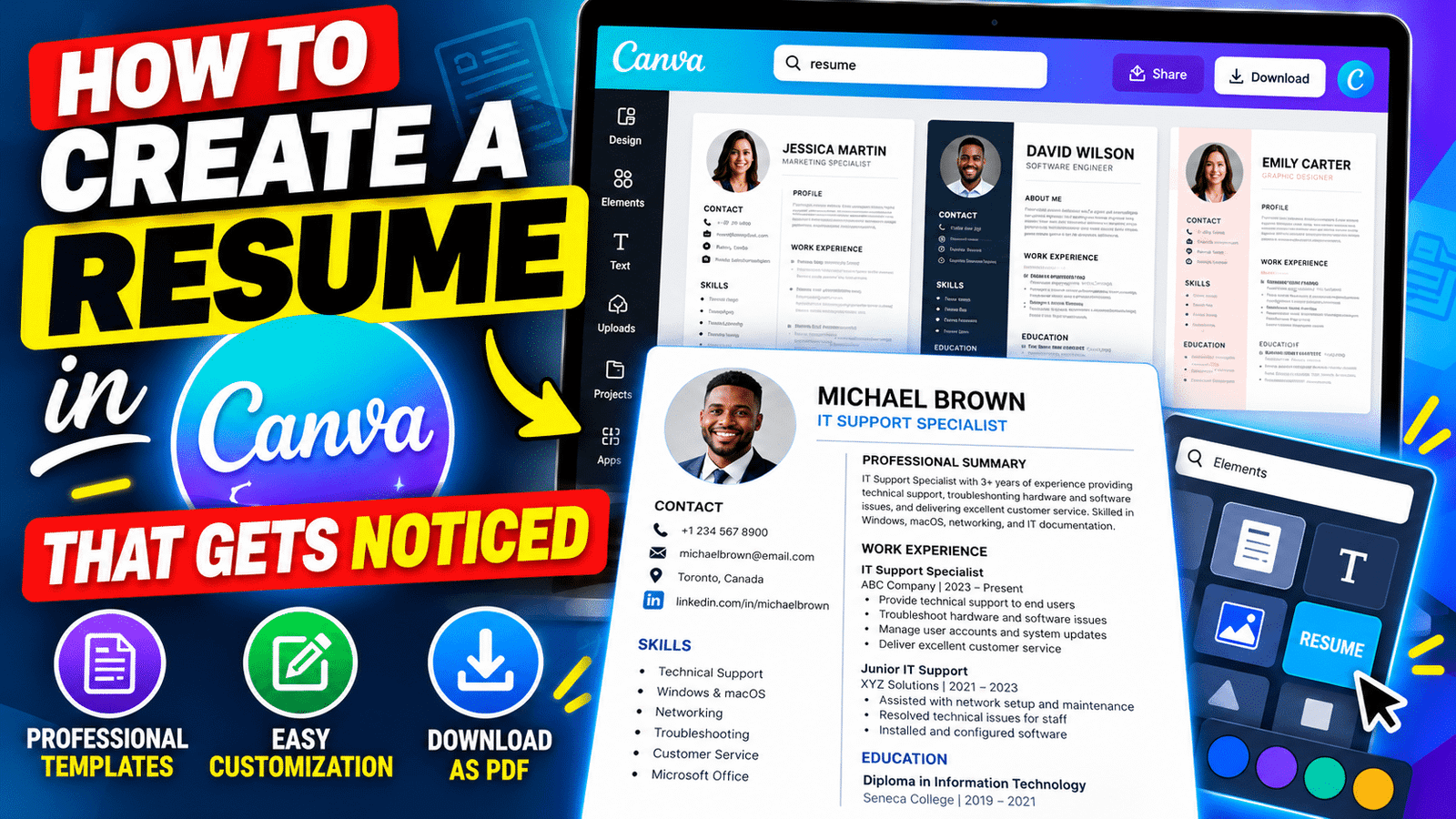
Your resume has approximately six seconds to make an impression. On average, recruiters take six seconds to look at a resume — which means if you are looking for a distinctive way to highlight your skills, you need a design that stops them in their tracks before a single word is read.
Canva makes professional resume design accessible to everyone — no graphic design experience required. Canva Resume Builder is a user-friendly online tool that empowers individuals to create visually appealing resumes. By offering a wide range of customizable templates and a simple drag-and-drop interface, Canva makes resume design accessible to users of all skill levels.
In this complete guide, we walk you through how to create a resume in Canva from start to finish — including how to use Canva’s AI Resume Builder, how to choose the right template for your industry, how to customise every element, how to make your resume ATS-friendly, and how to download and share it in the right format.
Why Use Canva to Build Your Resume?
Before diving in, here is why Canva has become one of the most popular resume-building tools in 2026:
- Hundreds of free templates designed for different industries and career levels
- Customisable design — change colours, fonts, and layout to create a unique resume
- Completely free — no cost to create and download your resume on the free plan
- AI Resume Builder — Canva’s new AI tool generates a personalised resume from your existing text and a job description in seconds
- 2,000+ templates — one of the largest resume template libraries available
- Drag-and-drop editor — resize, rearrange, and customise without technical skills
- Multiple export formats — download as PDF (best for applications), JPG, PNG, or Word
- Shareable link — send a live link to your resume instead of attaching a file
- Mobile app — design and edit your resume on your phone
- Auto-save — all changes save automatically so you never lose work
- Cover letter matching — create a matching cover letter in the same design style
Method 1: Create a Resume in Canva Using a Template (Recommended)
This is the fastest and most reliable method for creating a professional-looking resume in Canva. Starting from a professionally designed template means your layout, spacing, fonts, and colour scheme are already perfectly calibrated — you simply replace the placeholder text with your own information.
Step 1: Sign In or Create a Free Canva Account
Start by visiting the Canva website. If you already have an account, log in; otherwise, create a new account for free.
Step 1: Open your browser and go to canva.com.
Step 2: Click Sign up in the top right corner.
Step 3: Create your account using your email address, Google account, or Facebook account — all free.
Step 4: Once logged in, you are on the Canva dashboard and ready to begin.
Mobile option: Canva also has a mobile app if you prefer designing on your phone. Download the Canva app from the App Store or Google Play — the template library and editor work the same way.
Step 2: Search for Resume Templates
Step 1: In the search bar at the top of the Canva dashboard, type “Resume” and press Enter.
Alternatively, you can directly go to canva.com/resumes to access the resume template library.
Step 2: Canva will display hundreds of resume templates. You can filter by:
- Style — Modern, Minimalist, Professional, Creative, Simple, Elegant
- Colour — filter by your preferred colour scheme
- Industry — some templates are designed for specific fields
Step 3: Browse the templates and click on any one to preview it in full size.
Free vs. Pro templates: Templates marked with a crown icon require Canva Pro. Free templates have no special marker. You can create a fully professional resume using free templates alone — the distinction is purely cosmetic. Filter by Free to see only the no-cost options.
Step 3: Choose the Right Template for Your Industry
Not all resume templates suit all industries. Here is a quick guide:
| Industry / Role | Recommended Template Style |
|---|---|
| Finance, Law, Consulting, Accounting | Clean, single-column, minimal colour, traditional serif fonts |
| Tech, Software, Data Science | Modern, two-column, subtle accent colours, sans-serif fonts |
| Marketing, PR, Communications | Balanced design, brand colours, slightly more personality |
| Creative (Design, Photography, Art) | Bold, visual, distinctive layout — show your design sense |
| Healthcare, Education, Social Work | Clean, trustworthy, minimal — prioritise readability |
| Recent Graduate | Simple, organised, highlights education and skills clearly |
| Executive / Senior Professional | Authoritative, spacious, sophisticated — one page if possible |
Key principle: Your resume should feel appropriate for the role you are applying for. A graphic designer who submits a dull, plain resume signals a mismatch — just as a financial analyst who submits an overly colourful, decorative resume may signal the same. Match your template to your industry’s expectations.
Step 4: Customise Your Template
Once you click on a template and select Use this template, it opens in Canva’s editor. Now comes the customisation.
Editing Text
Step 1: Double-click on any text block to enter editing mode.
Step 2: Highlight the placeholder text and delete it, then type your own information.
Step 3: Press Escape when done editing a text block, or click elsewhere on the canvas.
Key sections every resume should include:
- Contact information — full name, phone number, email address, LinkedIn URL, city/country
- Professional summary — 2–4 sentences summarising who you are and what you bring to the role
- Work experience — company name, job title, dates, and 3–5 bullet points of achievements per role
- Education — degree, institution, graduation year
- Skills — relevant hard skills and tools, and key soft skills
- Optional sections — certifications, languages, publications, volunteer work, projects
Changing Fonts
Step 1: Select any text block.
Step 2: In the top toolbar, click the font name to open the font dropdown.
Step 3: Browse or search for your preferred font. Click to apply it.
Resume font recommendations:
- Sans-serif fonts for modern roles: Montserrat, Lato, Inter, Raleway, Open Sans
- Serif fonts for traditional roles: Playfair Display, Merriweather, EB Garamond, Lora
- Maximum fonts: Use no more than two different fonts — one for headings, one for body text
- Minimum font size: Never go below 9pt for body text — readability at print size matters
Changing Colours
Step 1: Click on any coloured element (header background, accent line, section title).
Step 2: In the top left of the toolbar, click the colour square.
Step 3: Enter your preferred colour using a hex code, or choose from Canva’s palette.
Colour advice for resumes:
- Keep your palette to 1–2 accent colours maximum
- Dark navy, deep teal, charcoal, and forest green are professional and modern in 2026
- Avoid bright, distracting colours for traditional industries
- Ensure strong contrast between text and background for readability
Adding or Removing Sections
If the template has sections you do not need, or is missing sections you want:
- To delete a section: Click to select it → press Delete on your keyboard
- To add a new section: Click the + or Elements panel → add a text box → style it to match the existing section headings
Adjusting Layout and Spacing
Make sure everything is neatly aligned in your Canva resume template. Fine-tuning margins and spacing makes the resume look super professional.
- Use Canva’s alignment guides (the pink/red lines that appear when dragging elements) to keep everything aligned
- Use the Position tool (click an element → click Position in the toolbar) to set exact spacing
- Maintain consistent spacing between sections throughout the document
Step 5: Add Your Photo (Optional)
Whether to include a photo on a resume depends on the country and industry:
Include a photo: Germany, France, many European and Asian countries — photos are standard and expected.
Do not include a photo: United States, United Kingdom, Canada, Australia — photos are generally not included and can introduce unconscious bias in screening.
If your industry or target country expects a photo:
- Click Uploads in the left sidebar
- Upload a professional headshot (plain background, well-lit, business-appropriate attire)
- Drag the photo onto the profile picture placeholder in your template
- Resize and reposition as needed
Canva’s built-in photo editor can remove the background from your headshot if needed — useful for fitting your photo into a shaped placeholder.
Step 6: Review for ATS Compatibility
ATS (Applicant Tracking System) is software used by most large employers to automatically scan, rank, and filter resumes before a human ever sees them. An ATS-friendly resume is one that these systems can scan and rank in their databases — its main goal is to sift through resumes and create a shortlist of qualified applicants.
Here is what makes a resume ATS-friendly: use clear headings such as “Work Experience” or “Skills”, and make sure that your resume is in a standard, legible font.
ATS checklist:
- ✅ Use standard section headings: Work Experience, Education, Skills, Summary — not creative alternatives like “My Journey” or “What I Bring”
- ✅ Use standard, legible fonts (Calibri, Arial, Helvetica, Lato, Montserrat) — avoid decorative or handwritten fonts
- ✅ Avoid tables, text boxes within text boxes, or complex multi-column layouts that ATS cannot parse correctly
- ✅ Include keywords from the job description naturally throughout your resume — ATS systems specifically match your resume text against the job posting
- ✅ Export as PDF — most ATS systems handle PDF well; avoid image-format exports (JPG, PNG) for applications submitted through portals
- ✅ Avoid headers and footers for contact information — some ATS systems cannot read text in these areas
Important ATS caveat: Highly visual, graphic-heavy Canva resume designs — multiple columns, icons, coloured text boxes, sidebar sections — can struggle with ATS parsing. If you are applying to large corporations that use ATS screening, choose a simpler, more linear Canva template or use Canva to design a visually polished version and a simpler PDF for ATS submissions.
Method 2: Use Canva’s AI Resume Builder
Canva’s AI Resume Builder is one of the most useful new additions to the platform in 2026. It can generate a complete, personalised resume in seconds from your existing content and a job description.
Just copy and paste your resume text and the job description to quickly generate a personalised resume and cover letter that wins interviews.
Step 1: Access the AI Resume Builder
Go to canva.com/ai-resume-builder or search “AI Resume Builder” in the Canva dashboard.
Step 2: Paste Your Information
Step 1: In the AI Resume Builder interface, paste your existing resume text (or a summary of your work history and skills) into the provided field.
Step 2: Paste the job description from the role you are applying for into the second field.
Step 3: Click Generate.
Step 3: Review and Refine
The AI will generate a resume that:
- Highlights the most relevant experience from your background
- Incorporates keywords from the job description
- Suggests language and phrasing that resonates with the hiring context
- Formats your content into a professional layout
Review the generated content carefully. The AI provides a strong starting point but your voice, specific achievements, and accurate details should always be verified and personalised before submitting.
Step 4: Open in the Editor and Customise
After generating, click Open in Editor to fine-tune the content and design using the same drag-and-drop tools covered in Method 1.
How to Write Resume Content That Gets Noticed
A great-looking Canva template is only as strong as the content you put in it. Here is how to write each section effectively:
Professional Summary
Your summary is the first thing recruiters read after your name. Make it count.
Formula: [Who you are professionally] + [Your years of experience and specialty] + [Your biggest value-add] + [What you are looking for]
Weak example: “Experienced marketing professional looking for a new opportunity in a dynamic company.”
Strong example: “Digital marketing manager with 6 years of experience driving B2B lead generation through SEO, paid media, and content strategy. Generated $2.4M in attributed pipeline for SaaS clients in 2025. Seeking a senior marketing role where I can build and scale a results-driven demand generation function.”
Work Experience
Use the PAR formula for each bullet point: Problem → Action → Result
Weak bullet: “Managed social media accounts”
Strong bullet: “Grew Instagram audience from 8,000 to 47,000 followers in 12 months through a consistent content calendar and influencer partnership strategy, resulting in a 34% increase in website traffic from social channels”
Key principles:
- Start every bullet with a strong action verb — led, built, increased, reduced, launched, managed, created, developed, negotiated
- Quantify wherever possible — percentages, dollar amounts, time saved, team size, number of clients, project scale
- Focus on achievements, not responsibilities — what you accomplished, not just what your job description said
- Use past tense for previous roles, present tense for current role
Skills Section
These are often listed in the job description, so it is a good idea to update your resume to match every job you apply for.
Tailor your skills section to each application — mirror the language used in the job posting. If the job description says “Google Analytics,” write “Google Analytics” (not “web analytics tools”). ATS systems match exact phrases.
Organise skills into categories if you have many:
- Technical Skills: Python, SQL, Figma, Adobe XD, Salesforce
- Marketing Tools: HubSpot, Google Ads, Mailchimp, SEMrush
- Languages: English (native), French (professional), Spanish (conversational)
Education
For recent graduates: place Education near the top of the resume. For experienced professionals (5+ years): place it near the bottom.
Include: Degree name, Institution, Graduation year, Relevant coursework or honours (optional for experienced professionals).
Step 7: Download Your Canva Resume
When your resume is complete, it is time to export it.
Step 1: Click the Share button in the top right corner of the Canva editor.
Step 2: Click Download.
Step 3: Choose your file format:
| Format | Best For |
|---|---|
| PDF (Print) | Job applications submitted through portals and by email — best option for most applications |
| PDF (Standard) | Digital sharing and viewing on screen |
| Word (.docx) | When an employer specifically requests a Word document |
| JPG / PNG | Sharing as an image on LinkedIn or portfolio — NOT for job applications |
Step 4: Click Download to save the file to your device.
Save and download in your preferred PDF or Word format, embed online, or transform into a responsive Canva Site.
Sharing Options Beyond Downloading
Canva offers several ways to share your resume beyond a downloaded file:
Shareable link: Click Share → Copy link. Anyone with the link can view your resume in their browser — useful for sharing on LinkedIn or sending in emails instead of an attachment.
Canva Site: Convert your resume into a live web page — a modern alternative to a traditional resume, particularly popular in creative industries. Start a free, one-page Canva Site for your professional portfolio.
Print: Order high-quality printed copies directly from Canva Print — useful for networking events, career fairs, or in-person interviews where you want to hand over a physical copy.
Resume Design Tips That Make Recruiters Notice You
1. Keep It to One Page (Usually)
If you have limited work experience, a one-page resume makes sense. As long as your resume is clear and easy to read, having a two-page resume is also fine.
Practical guideline:
- Less than 5 years of experience → one page
- 5–15 years of experience → one to two pages
- 15+ years of experience or academic/research roles → two pages acceptable
2. Use White Space Generously
Cramming text into every available corner of the page makes a resume feel desperate and hard to read. White space is not wasted space — it is breathing room that makes your content easier to scan.
3. Consistency Is Everything
Ensure uniform formatting throughout:
- Same font size for all body text
- Same bullet point style for all experience entries
- Same spacing between all sections
- Same date format throughout (Month Year or MM/YYYY — pick one and stick to it)
4. Lead with Your Strongest Material
Recruiters read top to bottom. Your most impressive and relevant qualifications should appear in the top half of the first page — above the fold, visible without scrolling.
5. Tailor Every Application
Everything on a CV or resume should be as clear and as easy to read as possible. Beyond clarity, tailoring is the single highest-impact thing you can do. Canva makes this easy — create multiple versions of your resume, and make small edits where needed. Duplicate your base resume design in Canva, then customise the summary, skills, and experience bullet points for each application.
Common Canva Resume Mistakes to Avoid
Using too many colours. Limit your palette to one or two accent colours. More than that looks amateurish and distracts from your content.
Choosing decorative fonts for body text. Script, display, and handwritten fonts look beautiful at large sizes but become difficult to read at resume body text size (9–11pt). Use clean sans-serif or serif fonts for body text.
Over-designing for a conservative industry. A colourful, graphic-heavy resume that would stand out in a creative agency can actively hurt your chances at a law firm, bank, or government organisation. Know your audience.
Exporting as an image for job applications. PNG and JPG exports cannot be read by ATS systems. Always export as PDF for actual applications.
Including irrelevant information. Every line on your resume is competing for the recruiter’s attention. Remove anything that does not actively support your candidacy for the specific role.
Copying a template without personalising the design. Many candidates use popular Canva templates without changing the colours, layout, or fonts at all. If 500 people apply with the same template, personalisation is what sets yours apart.
Frequently Asked Questions
Is creating a resume in Canva free?
Yes, creating your resume on Canva’s resume builder is totally free. The free plan gives access to hundreds of resume templates and full editing capabilities. Some premium templates require Canva Pro, but free templates are more than sufficient for professional results.
Can I download my Canva resume as a Word document?
Yes. When downloading, select Word (.docx) as your file format. This is useful when employers specifically request a Word document, though PDF is generally preferred.
Is a Canva resume ATS-friendly?
It depends on the template. Simple, single-column Canva templates with standard section headings and standard fonts are generally ATS-readable. Complex multi-column designs with heavy graphics, icons, and coloured text boxes may not parse well through ATS systems. For ATS-critical applications, choose a simpler template.
Can I use Canva’s AI Resume Builder for free?
Canva’s AI Resume Builder is available on the free plan with some usage limits. Access it at canva.com/ai-resume-builder.
How do I share my Canva resume without downloading it?
Click Share → Copy link in the Canva editor. This generates a live link to your resume that anyone can view in a browser — no download required. You can also convert it into a one-page Canva Site.
What size should a resume be in Canva?
Canva’s default resume canvas is set to standard US Letter (8.5 × 11 inches) or A4 (210 × 297mm) — both are correct for resumes. Use A4 for applications in the UK, Europe, Australia, and most international markets. Use US Letter for North American applications.
Can I create a resume in Canva on my phone?
Yes. Canva also has a mobile app if you prefer designing on your phone. The iOS and Android apps provide access to the same template library and editing tools as the desktop version.
Should I include a photo on my Canva resume?
This depends on your target country and industry. Photos are standard in Germany, France, and many Asian countries but are generally not included in the US, UK, Canada, and Australia. Research the conventions of your target job market before including a photo.
How do I make my Canva resume stand out?
Choose a template that matches your industry’s tone, tailor the design with a cohesive colour scheme, focus your content on quantified achievements rather than responsibilities, match keywords from the job description, and keep the layout clean and well-spaced. A distinctive but professional design combined with compelling content is the winning combination.
Can I create a matching cover letter in Canva?
Yes. Use Canva’s AI letter generator to tailor each cover letter with ease. Search for “Cover Letter” in Canva’s template library and choose a design that matches your resume — applying for a job with visually consistent documents creates a more professional impression.
