How to Use Snap Map Safely to Find Friends on Snapchat
Snapchat has a feature called Snap Map that lets you see where your friends are, discover public stories from different places, and explore what is happening around you.
This feature can be useful, but it is also important to use it carefully because it involves location sharing. In this guide, I’ll explain how Snap Map works, how to find friends safely, and how to protect your privacy while using it.
What Is Snap Map?
Snap Map is a Snapchat feature that shows your location and your friends’ locations on a map, depending on their privacy settings.
You can use Snap Map to:
- see where your friends are
- view public stories from nearby locations
- explore events, news, and popular places
- check what is happening in different areas
Snap Map only works when location access is allowed on your device.
Important Privacy Warning
Before using Snap Map, remember this:
If your location is turned on and visible to friends, people may be able to see where you are.
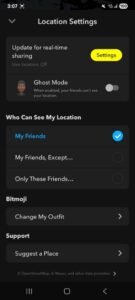
For privacy, you should only share your location with people you trust. If you do not want anyone to see your location, you can use Ghost Mode.
How to Open Snap Map on Snapchat
Follow these steps:
- Open the Snapchat app.
- Log in to your account.
- From the camera screen, tap the location/map icon.
- Snap Map will open.
- You may see your Bitmoji on the map if location is enabled.
From here, you can zoom in or out to explore your area.
How to Find Friends on Snap Map
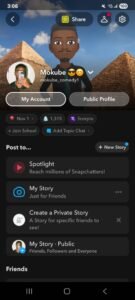
If your friends have shared their location with you, their Bitmoji may appear on the map.
To check:
- Open Snap Map.
- Look around your area on the map.
- Tap on a friend’s Bitmoji.
- Snapchat may show their location or recent activity, depending on their settings.
If you cannot see a friend, it may mean:
- they turned off location sharing
- they are using Ghost Mode
- they have not opened Snapchat recently
- they did not choose to share location with you
What Are Blue Hotspots on Snap Map?
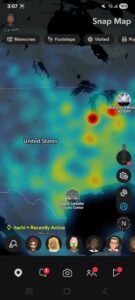
Blue hotspots on Snap Map usually show areas where people have posted public stories.
When you tap a blue hotspot, you may see public snaps from that area.
This does not always mean the person is still there. The story may have been posted earlier, so avoid assuming someone’s exact current location.
How to Add Friends Nearby on Snapchat
Snapchat used to have an Add Nearby feature, but Snapchat features can change over time depending on app updates and location.
The safer way to add someone nearby is:
- Ask the person for their Snapchat username.
- Open Snapchat.
- Tap the search icon.
- Type their username.
- Tap Add.
You can also add someone by scanning their Snapcode.
How to Use Snapcode to Add Someone
A Snapcode is Snapchat’s QR-style code.
To add someone using Snapcode:
- Ask the person to show you their Snapcode.
- Open Snapchat.
- Point your camera at the Snapcode.
- Press and hold on the screen.
- Tap Add Friend.
This is safer than trying to find random people nearby.
How to Turn On Ghost Mode
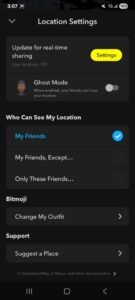
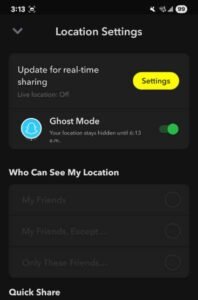
Ghost Mode hides your location from others.
To enable Ghost Mode:
- Open Snapchat.
- Go to Snap Map.
- Tap the settings icon.
- Turn on Ghost Mode.
- Choose how long you want it enabled.
You can turn it on temporarily or keep it on until you disable it.
Best Privacy Tips for Snap Map
To stay safe while using Snap Map:
- Share your location only with trusted friends.
- Avoid sharing your location publicly.
- Use Ghost Mode when needed.
- Do not add strangers just because they appear nearby.
- Be careful when posting public stories from your location.
- Review your Snapchat privacy settings regularly.
Frequently Asked Questions
Can strangers see my location on Snapchat?
Not unless your privacy settings allow location sharing. It is best to share your location only with trusted friends.
Why can’t I see my friend on Snap Map?
They may have turned on Ghost Mode, disabled location permission, or chosen not to share their location with you.
Can I use Snap Map on a computer?
Snapchat has offered web features, but Snap Map works best inside the mobile app.
Is Snap Map safe?
Snap Map can be safe if you use privacy settings properly. The most important thing is to avoid sharing your live location with people you do not trust.
Can I find random people near me on Snapchat?
Snapchat is mainly designed for connecting with friends, not tracking strangers. For safety and privacy, it is better to add people using usernames or Snapcodes.