


Introduction
You give your phone number to a store for a receipt, sign up for a gym membership, or share your contact with a new acquaintance — and within days, you find yourself suddenly added to a WhatsApp group full of strangers. No warning, no request, just an instant addition to a group chat you never agreed to join.
If this has happened to you, you are far from alone. It is one of the most common WhatsApp frustrations, and the good news is that WhatsApp has a built-in privacy setting specifically designed to solve it. In this guide, we will walk you through exactly how to stop people from adding you to WhatsApp groups, explain how the different privacy options work, and answer the most common questions about managing unwanted group invites.
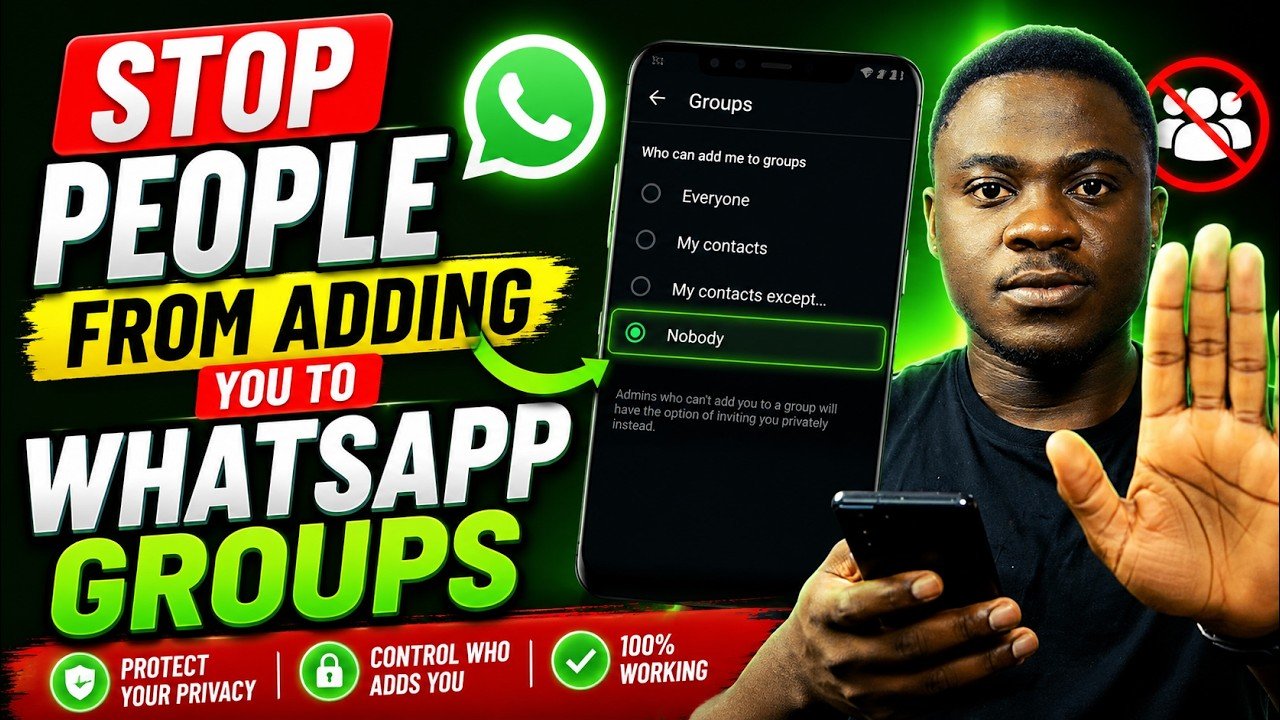

Why Does This Happen in the First Place?
By default, WhatsApp’s group privacy setting is configured so that anyone with your phone number can add you directly to a group — no permission required. This is convenient for legitimate situations, like a friend quickly adding you to a trip-planning group, but it also leaves the door wide open for spam.
Common scenarios where this becomes a problem include:
- A retail store or business adds your number to a promotional or customer group after a single purchase
- A distant acquaintance adds you to a large, unrelated group chat without asking
- Scammers and marketers harvest phone numbers and use them to add people to spam or phishing groups
- A group admin adds you based on an old or shared contact list, even if you barely know them
Because your phone number becomes visible to every member of a group the moment you are added, this is not just an annoyance — it is also a genuine privacy concern, since your number is exposed to people you never agreed to share it with.
The Three Group Privacy Options on WhatsApp
WhatsApp gives you three settings that control exactly who is allowed to add you directly to a group:
1. Everyone (Default Setting)
Anyone who has your phone number — saved in their contacts or not — can add you to a group instantly, with no confirmation needed on your end.
2. My Contacts
Only people who are already saved in your phone’s contact list can add you directly. Anyone outside your contacts who tries to add you will instead need to send you a private group invitation, which you can choose to accept or ignore.
3. My Contacts Except…
This is the most flexible and powerful option. It allows only your saved contacts to add you directly — except for specific people you choose to exclude. Anyone on your exclusion list will be treated the same as a stranger: they can only send you a private invite, which you are free to accept or decline.
For most people dealing with unwanted group additions, My Contacts Except… offers the best balance of convenience and control, since it lets you block specific repeat offenders (like that one relative who adds you to every group chat) while still allowing trusted contacts to add you normally.
How to Stop People From Adding You to WhatsApp Groups (Step-by-Step)
The steps are nearly identical on both Android and iPhone, with only minor differences in menu layout.
Step 1: Open the WhatsApp app on your phone.
Step 2: Tap the three dots (⋮) in the top-right corner on Android, or go to the Settings tab at the bottom of the screen on iPhone.
Step 3: Tap Settings, then tap Privacy.
Step 4: Scroll down and tap Groups.
Step 5: You will see the three options described above: Everyone, My Contacts, and My Contacts Except…
Step 6: Select My Contacts for a simple, broad layer of protection, or select My Contacts Except… if you want to block specific individuals while still allowing other contacts to add you directly.
Step 7: If you chose My Contacts Except…, you will now see your full contact list. Tap each contact you want to restrict, or tap the select-all icon (usually a checklist or hamburger-style icon in the top-right corner) to restrict every contact at once.
Step 8: Once you have made your selections, tap the green checkmark (Android) or Done (iPhone) in the bottom-right or top-right corner to save your changes.
That’s it — your new group privacy setting takes effect immediately.
What Happens When Someone Tries to Add You After Changing This Setting?
Once you have restricted who can add you, anyone outside your approved list who tries to add you to a group will see a message letting them know they cannot add you directly. Instead, they will be prompted to send you a private group invitation through a one-on-one chat.
Here is what that means for you:
- The invitation arrives as a personal message, separate from the group itself
- You will have three days to either accept or ignore the invitation
- If you ignore it, the invitation simply expires after the three-day window
- Your phone number is not exposed to other group members unless and until you choose to join
This gives you full control over which groups you actually end up in, without ever needing to explain yourself or respond to the person who tried to add you.
What If I Want to Block Absolutely Everyone From Adding Me?
This is one of the most common follow-up questions, and the honest answer is: there is currently no setting that blocks every single group invitation outright. Even with the strictest privacy setting, people can still send you a private invite — you simply retain full control over whether to accept it.
If your goal is to come as close as possible to total protection:
- Set your group privacy to My Contacts Except…
- Select all of your contacts using the select-all option
- Save your settings
With this configuration, everyone — including your saved contacts — will need to send you a private invitation rather than adding you directly. You can then simply ignore any invitations from groups you do not want to join.
If a specific person continues to be a persistent problem even after sending repeated invitations, you also have the option to block that contact entirely, which prevents them from adding you to any group or contacting you on WhatsApp at all.
How to Stop Random Members From Adding Others to a Group You Manage
If you are a group admin and want to control who can invite new people into a group you manage (rather than controlling who can add you personally), the steps are different:
Step 1: Open the group chat in question.
Step 2: Tap the group name at the top to open Group Info.
Step 3: Tap Group Permissions (sometimes labeled Group Settings).
Step 4: Turn off the toggle next to Add Members (or Add Other Members, depending on your app version).
Step 5: Optionally, enable Approve New Members, which requires an admin to manually approve anyone who is added before they officially join.
This ensures that only group admins — not random members — can bring new people into the group, giving you tighter control over who has access.
Frequently Asked Questions
Can people still see my number if I restrict who can add me to groups?
If your privacy setting is restrictive enough that someone must send you a private invitation, your number is not exposed to the group until you actually choose to join. This significantly reduces unwanted exposure of your contact information.
Will I be notified before I’m added to a group?
If your settings only allow your contacts to add you directly, you will be added without a notification step — same as before, just limited to people you actually know. If someone outside your approved list tries to add you, you will receive a private invitation instead, giving you the choice to accept or decline.
Does changing this setting affect group chats I’m already part of?
No. This setting only affects future additions to new groups. It has no impact on any groups you are already a member of.
If I block someone, can they still add me to a group?
No. If you block a contact entirely, they lose the ability to add you to any WhatsApp group, in addition to losing the ability to message or call you.
How long do private group invitations last before they expire?
Private group invitations expire automatically after three days if you do not respond to them.
Why can’t I find the Groups option under Privacy settings?
If you do not see this option, make sure your WhatsApp app is updated to the latest version. Older app versions may not display the full set of group privacy controls.
Can I choose different settings for different contacts?
Yes — that is exactly what the My Contacts Except… option is designed for. It allows you to apply restrictions to specific individuals while leaving your other contacts unaffected.
Does this setting work the same way on WhatsApp Business?
The core group privacy settings function similarly across both standard WhatsApp and WhatsApp Business, though menu layouts may differ slightly depending on your app version.
If someone is removed from my exception list, will they be able to add me again?
Yes. If you remove a contact from your My Contacts Except… list, they will regain the ability to add you directly to groups going forward, provided they are saved in your contacts.
