


WhatsApp Channels have quietly become one of the most powerful broadcast tools available to businesses, content creators, educators, and public figures in 2026. With over 500 million monthly active users already engaging with Channels through WhatsApp’s Updates tab — which itself reaches 1.5 billion people every single day — this feature represents a direct line to your audience that no algorithm can suppress and no spam folder can intercept.
Unlike social media posts that disappear into a crowded feed, WhatsApp Channel updates land directly in the Updates tab of every follower’s app. Open rates for WhatsApp content routinely approach 98 percent — a figure that makes even the best email marketing campaigns look modest by comparison.
The best part? Creating a WhatsApp Channel is completely free, takes less than two minutes, and keeps your personal phone number completely hidden from every single follower.
In this complete guide, we will walk you through how to create a professional WhatsApp Channel step by step on Android, iPhone, and desktop — plus how to set it up properly, grow your following, and use it effectively for your business or personal brand.

What Is a WhatsApp Channel?
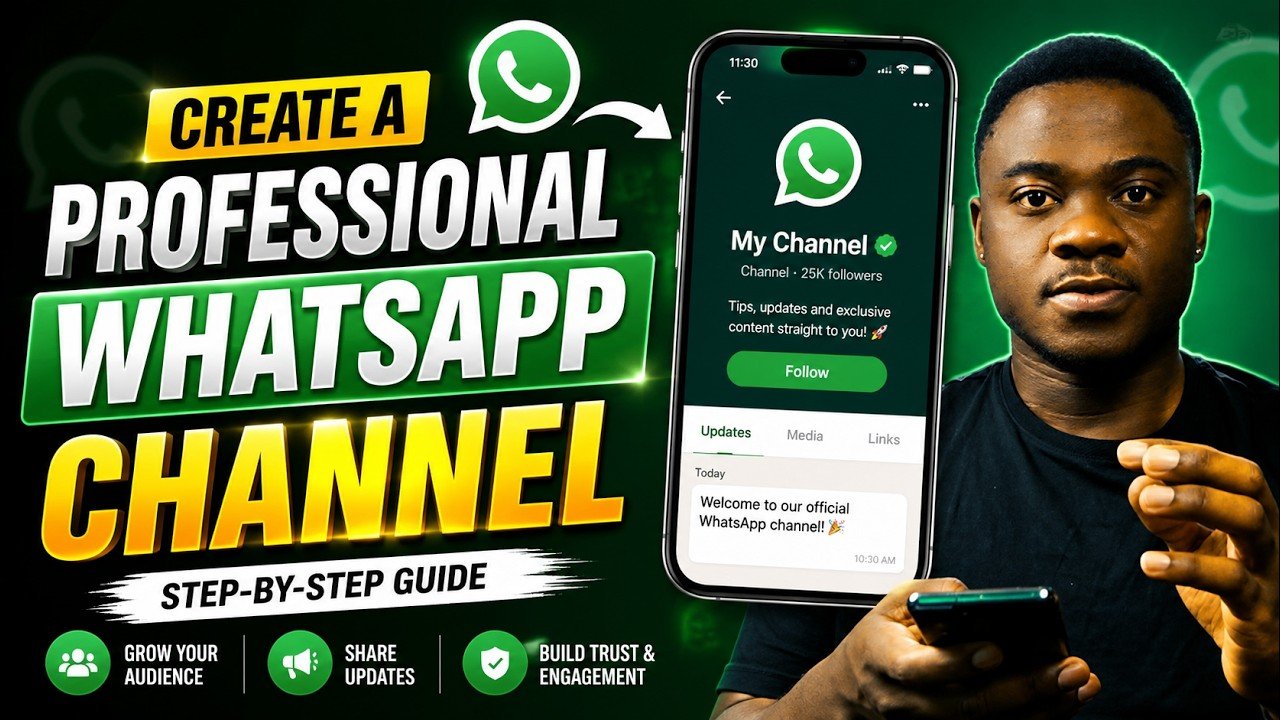
A WhatsApp Channel is a one-way broadcast tool that allows you to send updates, announcements, images, videos, polls, and documents to an unlimited number of followers — without revealing your phone number to any of them.
Think of it like a newsletter delivered directly inside WhatsApp — minus the spam folder, minus the algorithm, and minus the noise of a group chat.
Here is what makes WhatsApp Channels unique:
- Unlimited followers — no cap on how many people can subscribe, unlike Groups (limited to 1,024 members) or Broadcast Lists (limited to 256 saved contacts)
- Complete privacy — your phone number is never visible to followers; they only see your channel name and icon
- One-way communication — followers can react with emojis but cannot reply, keeping your channel clean and uncluttered
- Rich media support — share text, images, videos, GIFs, voice notes, polls, and documents
- 30-day post visibility — updates are visible to non-followers for 30 days; followers can see all posts from the beginning
- Free to create and use — no fees for channel operators or subscribers
WhatsApp Channel vs. Group vs. Broadcast List: What Is the Difference?
Before creating your channel, it helps to understand how it compares to WhatsApp’s other communication tools:
| Feature | Channel | Group | Broadcast List |
|---|---|---|---|
| Maximum members | Unlimited | 1,024 | 256 |
| Two-way communication | No (reactions only) | Yes | No |
| Admin phone number visible | No | Yes | Yes |
| Follower privacy | Full (anonymous) | No | Depends on contacts |
| Discovery in directory | Yes | No | No |
| Best use case | Announcements, updates | Discussions, communities | Private mass messaging |
The bottom line: use Channels for broadcasting to a large audience professionally, Groups for two-way community discussion, and Broadcast Lists for private messages to existing contacts.
What You Need Before Creating a WhatsApp Channel
Creating a channel is straightforward, but make sure you have the following ready:
1. An active WhatsApp account You can use either the standard WhatsApp app or the WhatsApp Business app. For businesses and professionals, WhatsApp Business is recommended as it provides additional tools for managing your presence.
2. The latest version of WhatsApp The Channels feature requires an up-to-date app. If you do not see the Updates tab or the channel creation option, update your WhatsApp from the App Store or Google Play Store first.
3. A channel name Choose your name carefully — it is how people find you in WhatsApp’s public directory. A name like “TechWithMike | Daily AI Tips” is far more discoverable than simply “Mike’s Channel.”
4. A profile picture or logo This is the first thing followers see. Use a high-resolution image — minimum 192×192 pixels — with a clean background. For businesses, your company logo works best.
5. A channel description You have 139 characters to explain what your channel is about and what value followers will get. Think of it as your channel’s sales pitch.
How to Create a WhatsApp Channel on Android (Step-by-Step)
Step 1: Open the WhatsApp app on your Android phone and make sure it is updated to the latest version.
Step 2: Tap the Updates tab at the bottom of the screen. This is where all Channels and Status updates live.
Step 3: Look for the Channels section and tap the + (plus) icon near the top of the screen.
Step 4: Select Create channel from the options that appear.
Step 5: Tap Continue to acknowledge the on-screen notices about how Channels work.
Step 6: Type your channel name. Choose something clear, descriptive, and searchable — include your topic or niche so people know what to expect before following. You can change this later if needed.
Step 7: Tap Add description and write a compelling 139-character description that explains what value your followers will get and how often you will post. For example: “Daily tech tips, AI tool reviews, and social media guides for creators. New post every morning.”
Step 8: Tap Add channel icon to upload your profile picture or logo. Select an image from your gallery or take a new photo. Aim for a clean, recognisable image that looks good as a small circle thumbnail.
Step 9: Tap Create channel. Your channel is now live.
How to Create a WhatsApp Channel on iPhone (Step-by-Step)
Step 1: Open WhatsApp on your iPhone and ensure it is on the latest version.
Step 2: Tap the Updates tab at the bottom left of the screen.
Step 3: In the Channels section, tap the + (plus) icon.
Step 4: Select Create channel.
Step 5: Tap Get Started and follow the on-screen prompts.
Step 6: Enter your channel name. Make it descriptive and keyword-rich for better discoverability in the WhatsApp directory.
Step 7: Add your channel description — 139 characters to explain your value proposition clearly.
Step 8: Tap Add channel icon to upload your logo or profile image.
Step 9: Tap Create channel to go live.
How to Create a WhatsApp Channel on Desktop (WhatsApp Web)
Step 1: Open your browser and go to web.whatsapp.com. Scan the QR code with your phone to log in.
Step 2: Look for the Channels icon in the left-hand sidebar (it looks like a megaphone or broadcast symbol).
Step 3: Click the + (plus) symbol and select Create Channel.
Step 4: Click Get Started and follow the on-screen prompts to add your channel name, description, and icon.
Step 5: Click Create channel to complete the setup.
Important note: You can only create a new WhatsApp Channel from the mobile app (Android or iPhone). However, once created, you can manage and post to your channel from WhatsApp Web or Desktop as well.
How to Set Up Your Channel Professionally After Creation
Creating the channel is just the beginning. How you set it up in the first few minutes determines whether new visitors stay or leave immediately. Follow this professional setup checklist:
1. Choose a Strategic Channel Name
Your channel name is your primary discovery tool in WhatsApp’s directory. Apply these principles:
- Include your topic or niche alongside your name or brand: “MokubeTech | Daily Tech & AI Tips” beats “MokubeTech” alone
- Use keywords your audience searches for — think like a podcast title, not a business card
- Keep it under 25 characters where possible so it displays cleanly in the directory listing
- Avoid generic names like “Official Channel” or “Updates” that tell followers nothing about value
2. Write a Compelling Description
Your 139-character description needs to answer one question: why should someone follow this channel? The most effective descriptions include:
- A clear statement of what content you share
- How often you post (consistency builds trust)
- A hint of exclusive value — things followers get that they cannot get elsewhere
Weak example: “News and updates from our company.”
Strong example: “Exclusive deals, early product launches, and expert tips on tech and AI — posted every weekday morning.”
3. Upload a Professional Profile Picture
Your channel icon appears as a small circle in the WhatsApp directory and in followers’ Updates tabs. To make it work at that small size:
- Use your company logo or a clean, recognisable photo
- Ensure the key visual element is centred and large enough to read at thumbnail size
- Use a solid or simple background — complex backgrounds disappear at small sizes
- Minimum resolution: 192×192 pixels; higher is better
4. Post Your Welcome Message Immediately
The moment your channel goes live, post a welcome message. This serves two purposes: it gives new followers something to read the moment they arrive, and it signals to WhatsApp’s directory algorithm that your channel is active.
A strong welcome message should:
- Introduce who you are and what the channel is about
- Explain what followers can expect (content type and frequency)
- Invite followers to share the channel with people who would find it valuable
Example: “Welcome to MokubeTech’s WhatsApp Channel! Here you will find daily tips on tech, AI tools, social media hacks, and how-to guides — everything you need to stay ahead in the digital world. New post every morning. Share this channel with anyone who loves tech!”
5. Pin Your Welcome Message
Once posted, pin your welcome message so it is the first thing every new follower sees at the top of your channel. This ensures your introduction is always visible, even as you post new content.
How to Grow Your WhatsApp Channel Following
Creating a channel is free and easy. Growing it takes strategy. Here are the most effective methods for building your following in 2026:
Share Your Channel Link Everywhere
Every WhatsApp Channel has a unique shareable link in the format whatsapp.com/channel/... and an accompanying QR code. Use both aggressively:
- Add the link to your Instagram, TikTok, X, Facebook, and LinkedIn bios
- Include it in your YouTube video descriptions and end screens
- Add it to your email signature
- Add the QR code to business cards, packaging, receipts, and printed materials
- Promote it in your WhatsApp Status — your existing contacts see your status every day
Post Consistently
WhatsApp’s directory algorithm rewards active channels with better placement in category rankings. Going silent for two weeks or more pushes your channel down in search results. Aim for:
- 2 to 4 posts per week as a minimum baseline
- A consistent posting schedule your audience can anticipate — the same time each day or week builds habit
- A content mix that combines announcements, tips, polls, and behind-the-scenes updates to keep things fresh
Use WhatsApp’s Built-In Share Features
After creating each post, tap the share icon to distribute it to your WhatsApp Status, individual chats, or other platforms. Sharing channel posts to your Status puts them in front of all your existing contacts with a direct link to follow the channel.
Collaborate With Other Channels
Find complementary channels in your niche — brands or creators who serve a similar audience but are not direct competitors — and arrange cross-promotions. Mentioning each other’s channels exposes both audiences to new content they are likely to find valuable.
Get Verified
<cite index=”9-1″>The green verification checkmark is awarded by WhatsApp to verified brands, public figures, and established organizations — you cannot apply for it directly, as WhatsApp contacts eligible accounts themselves.</cite> However, building an active, growing channel with consistent quality content puts you on the path toward eligibility. Verified channels also rank higher in the directory, making verification a meaningful growth accelerator once achieved.
What to Post on Your WhatsApp Channel
WhatsApp Channels support a wide variety of content formats:
- Text posts — tips, announcements, quotes, news updates, commentary
- Images — product photos, infographics, promotional graphics, behind-the-scenes shots
- Videos — tutorials, product demos, short clips, announcements
- Voice notes — personal messages, audio tips, brief announcements in a conversational tone
- Polls — audience questions, preference surveys, feedback collection
- Documents — PDFs, guides, price lists, catalogues, resource downloads
- Links — driving followers to your website, shop, blog, or YouTube channel
Content Strategy Tips
Lead with value, not promotion. The channels that grow fastest are the ones that give followers something genuinely useful — tips, insights, exclusive information — rather than simply pushing products or services. A ratio of roughly 70% value content to 30% promotional content works well for most channels.
Use polls regularly. Polls are one of the highest-engagement content formats on WhatsApp Channels. They give followers a way to interact meaningfully beyond emoji reactions, and the results give you direct audience insight.
Create posts worth forwarding. Every time a follower forwards your post to someone outside the channel, that share includes your channel link — giving you organic reach into entirely new networks. Posts that are genuinely useful, surprising, or entertaining get forwarded most often.
How to Manage Admins on Your WhatsApp Channel
If you are running a channel for a business or team, you can add up to 16 additional admins to help manage and post content without sharing your personal phone number.
To add an admin:
- Open your channel and tap the channel name at the top
- Tap Manage admins
- Select the contacts you want to invite as admins
- They will receive an invite and can accept or decline
Privacy note: Admins can see each other’s profiles (name and profile picture) to coordinate. Subscribers remain completely anonymous — they cannot see who the admins are or who else has subscribed.
How to Monitor Your Channel Performance
WhatsApp Channels provide basic built-in analytics covering:
- Reach — how many followers received each post
- Follower growth — how your subscriber count changes over time
- Reactions — which emoji reactions your posts receive
- Poll results — response data from any polls you post
These analytics are more limited than email marketing platforms or social media dashboards — there is no click tracking, conversion attribution, or A/B testing built in. For tracking whether your channel is actually driving traffic or sales, use UTM parameters in any links you share so you can measure clicks and conversions in Google Analytics or a similar tool.
Can You Make Money From a WhatsApp Channel?
Monetisation options for WhatsApp Channels have expanded significantly in 2026:
Paid subscriptions: Channel admins can now offer premium content behind a paywall — exclusive product previews, VIP discounts, early access to launches, or premium educational content. The subscription fee is set by the admin, with WhatsApp taking a platform fee that varies by region.
Indirect monetisation: The most common path for most channel operators is driving followers to external revenue streams — linking to your online shop, sharing affiliate product recommendations, promoting your services, or using time-limited offers to create urgency.
Meta advertising integration: Meta has begun testing promoted Channels and advertising within the Updates tab, which could significantly accelerate follower acquisition for businesses willing to invest in paid promotion.
Frequently Asked Questions
Is creating a WhatsApp Channel free?
Yes, completely free. <cite index=”9-1″>There are no fees for creation or usage — neither for channel operators nor for subscribers.</cite>
Can followers see my phone number?
No. <cite index=”9-1″>As a channel operator, you remain completely anonymous. Subscribers only see your channel name and channel image — not your profile or your number.</cite>
How many followers can a WhatsApp Channel have?
There is no official follower limit. Channels can grow to millions of subscribers — <cite index=”10-1″>Real Madrid CF holds the top global spot with over 66 million followers as of early 2026.</cite>
Can followers reply to my posts?
No. WhatsApp Channels are one-way only. Followers can react to posts using emojis, but they cannot send messages or replies within the channel itself.
How long do channel posts stay visible?
Followers who subscribe to your channel can see all posts from the beginning. Non-followers browsing the directory can only see your most recent 30 days of posts.
Can I create a WhatsApp Channel on a desktop?
You can manage and post to an existing channel from WhatsApp Web or Desktop. However, the initial channel creation must be done from the mobile app (Android or iPhone).
Can I change my channel name after creating it?
Yes. Your channel name, description, and icon can all be updated at any time through the channel settings without affecting your follower count.
How many admins can a WhatsApp Channel have?
You can invite up to 16 additional admins to help manage your channel.
Can I have multiple WhatsApp Channels?
Yes. You can create multiple channels from a single WhatsApp account. There is no official stated limit on the number of channels per account.
How do I get the green verification checkmark?
Verification is not publicly available as a self-application process. WhatsApp contacts eligible accounts — typically verified brands, public figures, and established organisations — directly when they qualify.
Don’t miss a thing! Join our Telegram community for instant updates
For more daily updates, please visit our News Section.
