


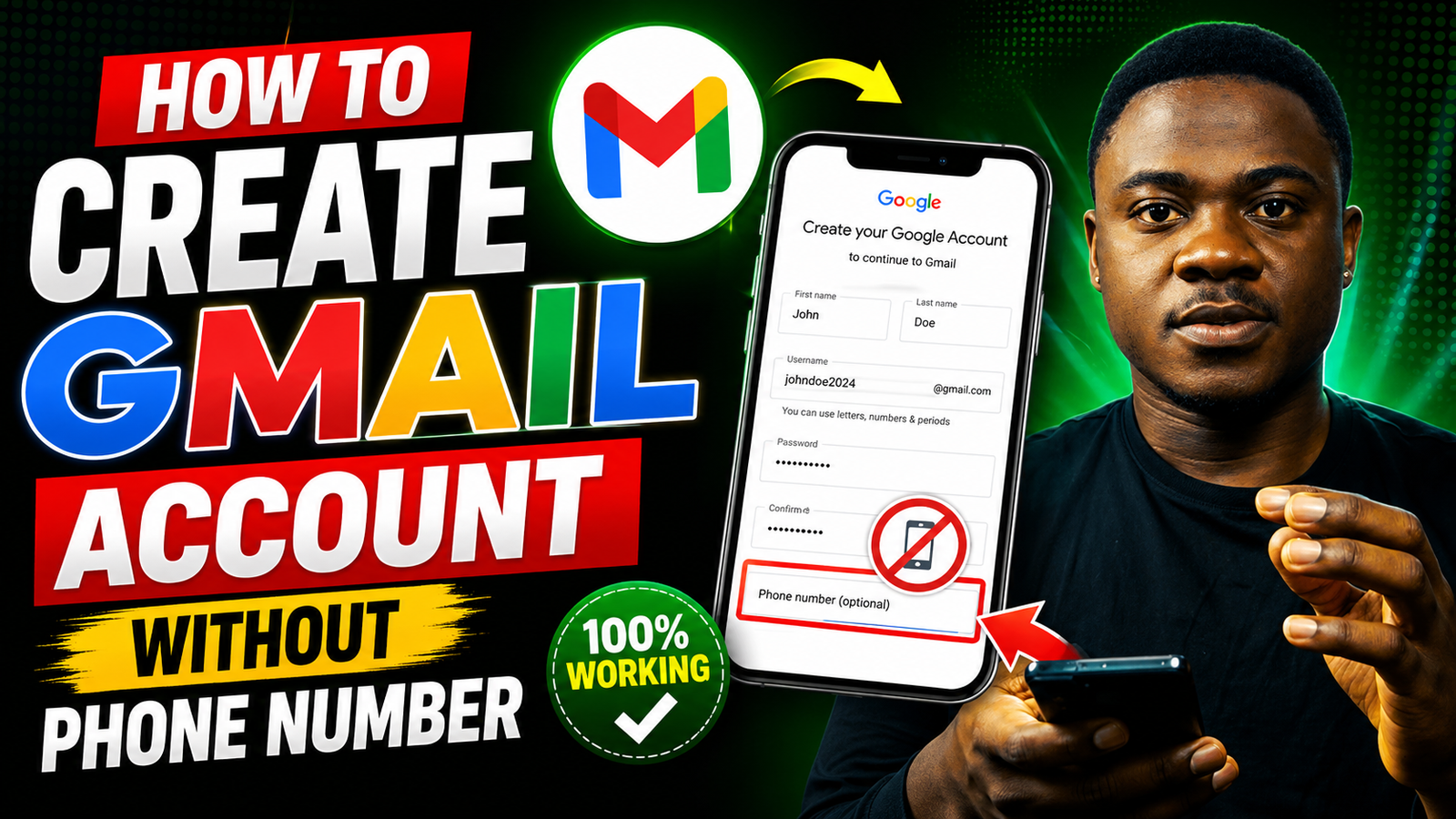
How to Create a Gmail Account Without a Phone Number (2026 Guide)
How to Create a Gmail Account Without a Phone Number (2026 Guide)
Creating a Google Gmail account without a phone number is still possible in some cases. Google may ask for phone verification for security, but many users can create a Gmail account without adding a number by following the right steps.
In this guide, you’ll learn:
- How to create a Gmail account without a phone number
- Methods that work on mobile and desktop
- Tips to avoid phone verification
- Important things to know before creating the account
Method 1 — How to Create Gmail Account Using Incognito Mode
One of the easiest methods is using your browser’s private or incognito mode.
Step 1 — Open Incognito Mode
On Google Chrome:
- Click the three dots
- Select:
“New Incognito Window”
Shortcut:
- Windows: Ctrl + Shift + N
- Mac: Command + Shift + N

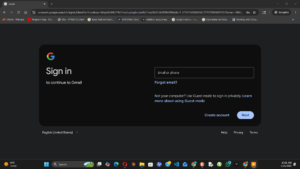
Step 2 — Open Gmail Signup Page
Go to:
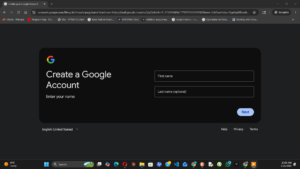
Step 3 — Enter Your Information
Fill in:
- First name
- Last name
- Username
- Password
Click: Next
Step 4 — Skip Phone Number (If Available)
If Google shows the phone number field, leave it empty and click Skip or Next. Sometimes Google allows you to continue without verification.
- Leave it empty
- Click Skip or Next
Sometimes Google allows you to continue without verification.
Step 5 — Add Recovery Email (Optional)
You can add:
- Recovery email
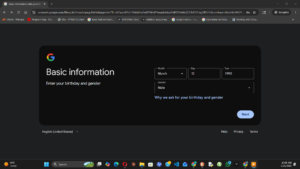
- Date of birth
- Gender
Then accept Google’s terms and conditions.
Done!
Your Gmail account is now created.
Method 2 — How to Create Gmail Account on Android Phone
Android devices sometimes allow account creation without phone verification.
Steps
- Open Settings
- Go to:
Accounts → Add Account - Select:
Google - Tap:
Create Account - Fill in your information
- Skip phone number if possible
This method works better on new Android devices.

Method 3 — Use a Different Browser or Device
If Google keeps asking for your phone number:
- Try another browser
- Use another device
- Clear browser cookies
- Change your internet connection
Google sometimes triggers verification because too many accounts were created, suspicious activity was detected, or shared networks are used.
- Too many accounts were created
- Suspicious activity was detected
- Shared networks are being used
Why Google Sometimes Requires Phone Verification
Google uses phone verification to:
- Prevent spam
- Stop fake accounts
- Improve security
- Recover accounts more easily
Verification requests are usually based on:
- Device history
- IP address
- Browser activity
- Number of accounts created
Tips to Avoid Phone Verification
1. Use a Clean Browser
Use incognito mode or clear cookies.
2. Avoid Creating Many Accounts Quickly
Too many signup attempts can trigger verification.
3. Use Real Information
Fake names and suspicious activity may increase verification requests.
4. Add a Recovery Email Instead
Sometimes adding a recovery email helps avoid phone verification.
Important Warning
Avoid:
- Fake phone number generators
- Temporary SMS websites
- Suspicious verification tools
These methods can:
- Get accounts suspended
- Create security risks
- Cause account recovery problems later
Benefits of Adding a Phone Number
Although creating Gmail without a number is possible, adding one later can help:
- Recover your account
- Improve security
- Enable two-factor authentication
- Protect against hacking
However, Google’s security system changes regularly, so phone verification may still appear for some users.
For more tech tutorials and Gmail tips, visit: Elec tv


